Events and User Input
- Define 'events' as triggers that initiate programming sequences.
- Trigger scripts reliably using the Green Flag event block.
- Map physical keyboard keys to specific sprite actions on screen.
- Program interactive elements that respond to direct mouse clicks.
1. Define 'events' as triggers
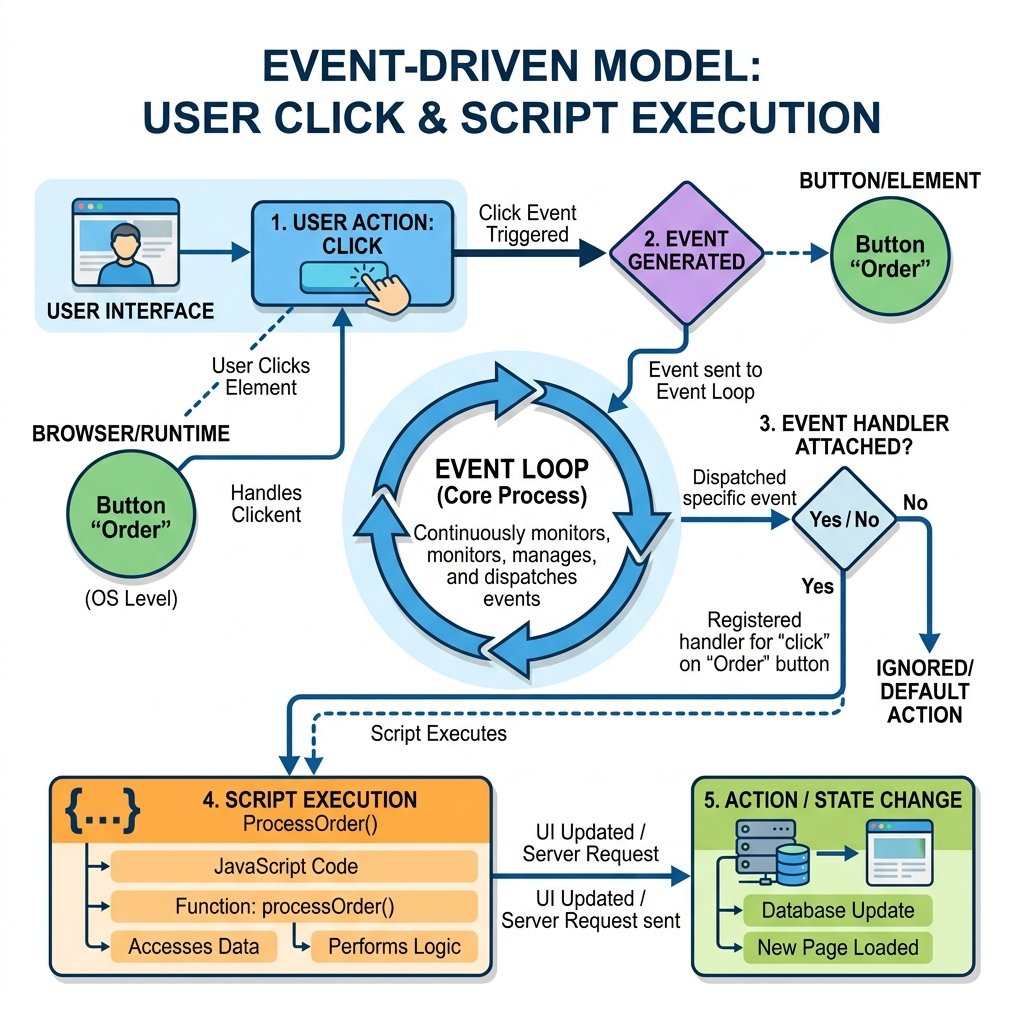
In computer programming, an event is an action or occurrence detected by the program that can trigger a response. Events are the starting triggers for any interactive application. Without events, code has no starting trigger, sitting inert. When a user presses a key, clicks a mouse, or when a timer reaches a limit, an event is broadcast. The computer listens for these events and executes the scripts attached to them.
Think of events as light switches. Flipping the switch is the event, and the bulb turning on is the script. In Scratch, all events blocks are yellow and have a rounded top (a hat shape), signifying that they must sit at the absolute top of any script stack to activate it.
2. Trigger scripts using the Green Flag
The green flag button above the Stage acts as the global "start" signal in Scratch.
Snapping scripts under the yellow when green flag clicked block ensures
they run immediately when the project is executed. This is standard practice for setting
up initial positions, variables, and starting loops, acting as the main setup routine of
your game or story.
Using the Green Flag block is essential for resetting state. If your sprite ends up at a
random corner during gameplay, placing a go to x: 0 y: 0 block right under
the green flag ensures it starts at the center every single time the game restarts. This
prevents state carryover errors.
3. Map keyboard keys to sprite actions
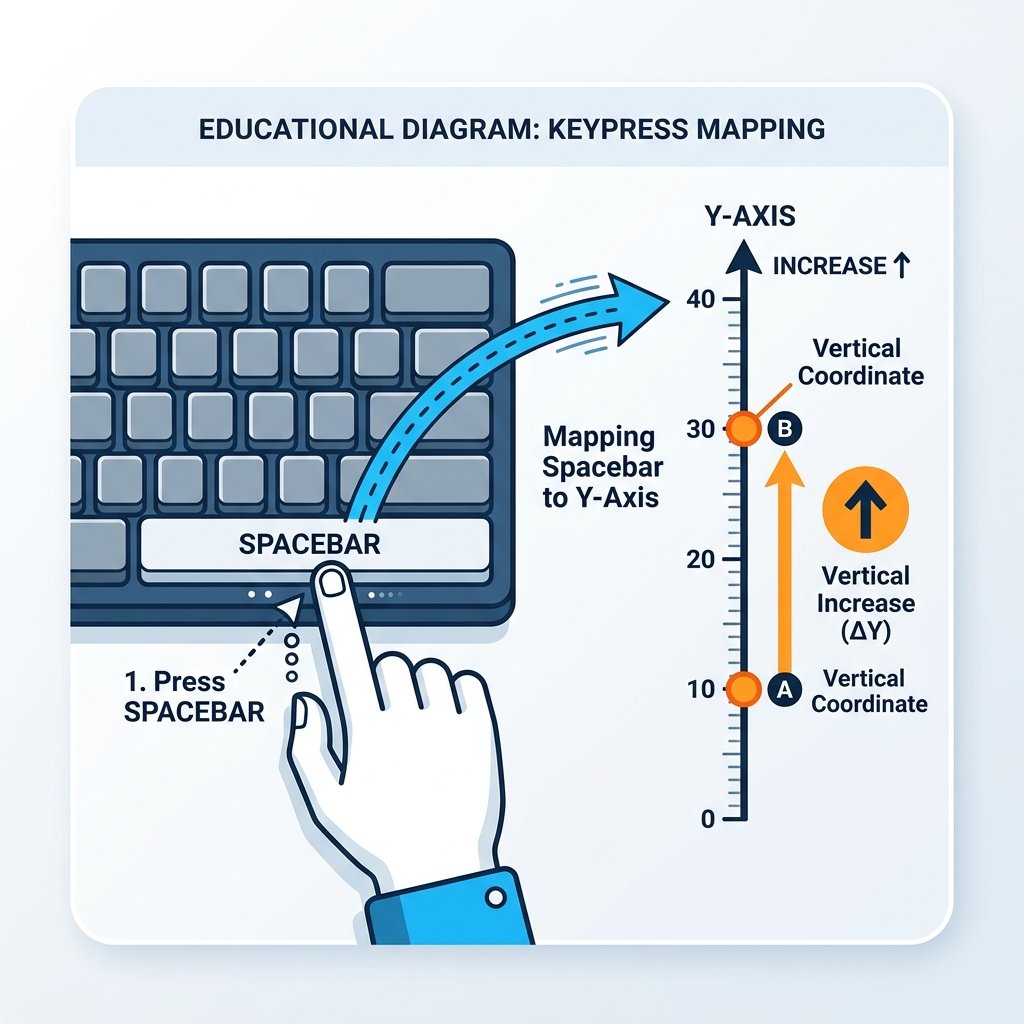
By using the when [key] pressed block, you can make your sprites react
directly to inputs from the user's keyboard. For example, mapping the Right Arrow key to
change x by 10 and the Left Arrow key to change x by -10
establishes basic horizontal controls. This teaches students how physical user actions
map directly to digital calculations and coordinate transformations.
Keyboard controls are what turn static animations into playable games. You can select any key from the dropdown list, including arrows, spaces, letters, and numbers. Mapping these controls makes navigation responsive and creates immersive arcade-style play.
4. Program elements to respond to mouse clicks
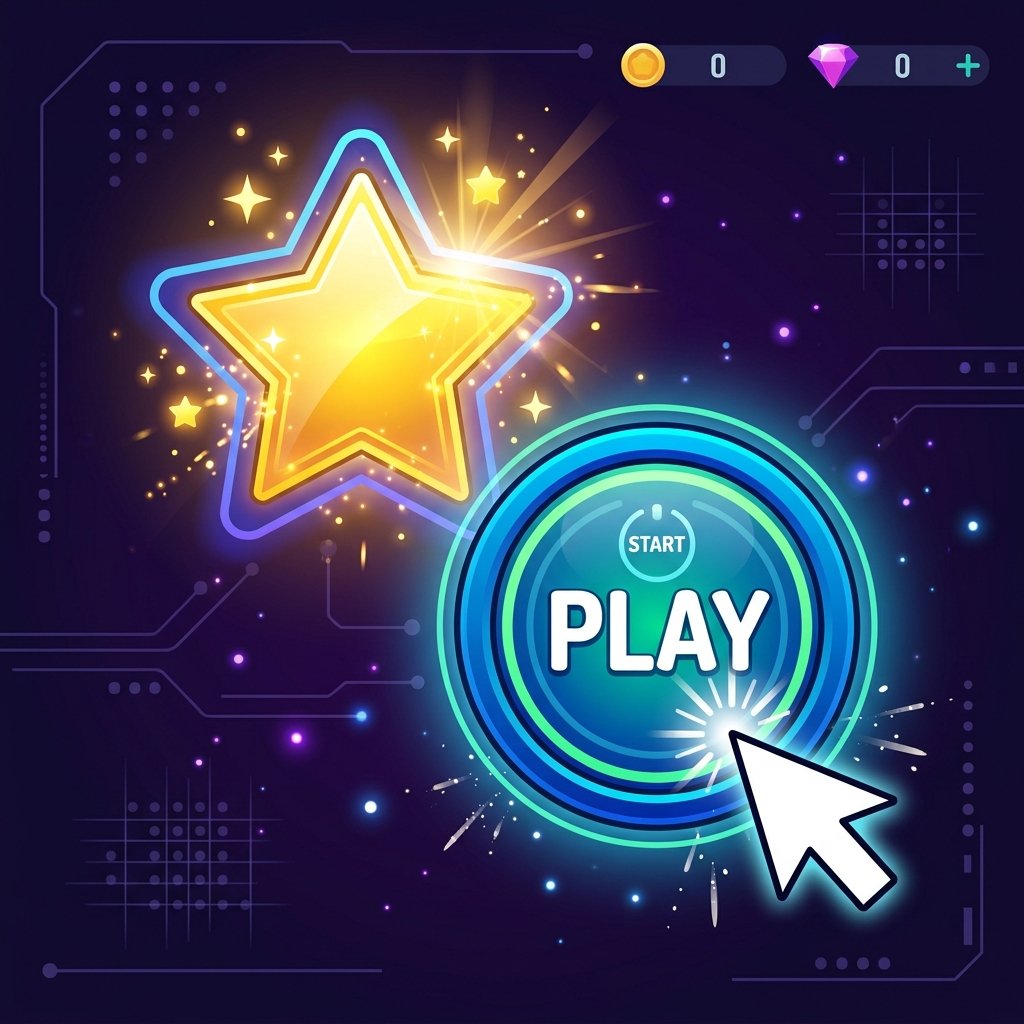
Interactive software relies on button clicks and target selections. The
when this sprite clicked block creates an event listener bound to the
collision box of that specific sprite. When the user's cursor hovers over the sprite and
a click is detected, the event fires. This can be used to open menus, trigger sound
effects, or select options inside games, giving elements a tactile, responsive feel.
By using click listeners, you can build virtual dashboards, clicker games, or choose-your-own-adventure pathways. When clicked, the sprite can grow in size, change color, play a sound effect, or broadcast a message to tell other sprites what to do.
Interactive Star Controller
- Add a 'Star' sprite and place it at the center of the Stage.
- Create a script using 'when green flag clicked' that sets the star's size to 100% and resets its coordinates to (0, 0).
- Create four separate scripts using 'when [up arrow] key pressed', 'when [down arrow] key pressed', 'when [right arrow] key pressed', and 'when [left arrow] key pressed'.
- Map Up Arrow to change Y by 15, Down Arrow to change Y by -15, Right Arrow to change X by 15, and Left Arrow to change X by -15.
- Add a script starting with 'when this sprite clicked' that plays the sound 'Collect' and changes the color effect by 25.
Model Answer Walkthrough
- Initialize on startup: [when green flag clicked] -> [go to x: (0) y: (0)] -> [set size to (100)%].
- Create the Arrow Key controller scripts: [when [up arrow] key pressed] -> [change y by (15)], [when [down arrow] key pressed] -> [change y by (-15)], [when [right arrow] key pressed] -> [change x by (15)], [when [left arrow] key pressed] -> [change x by (-15)].
- Create the sprite click handler: [when this sprite clicked] -> [start sound (Collect)] -> [change [color] effect by (25)] (Looks Category).
- Press the arrow keys to navigate the star across the screen and click on it to see it flash color and play sounds!