Introduction to Variables
- Define variables as dynamic data containers used to store information.
- Create a new custom variable within the Scratch interface.
- Initialize variables securely at the start of a program (e.g., setting to 0).
- Update variable values dynamically based on in-game actions.
1. Define variables as dynamic data containers
A variable is a storage container in computer memory that holds a single piece of information, such as a number or text. You can think of it as a labeled drawer: you write a label on the drawer (the variable name) and place a value inside. The program can read, check, or overwrite this value at any time as the project runs, which is essential for tracking dynamic data like score, health, or speed.
Variables let programs remember things. In game design, variables act as the memory of your project, storing values that fluctuate over time, ensuring states are calculated dynamically.
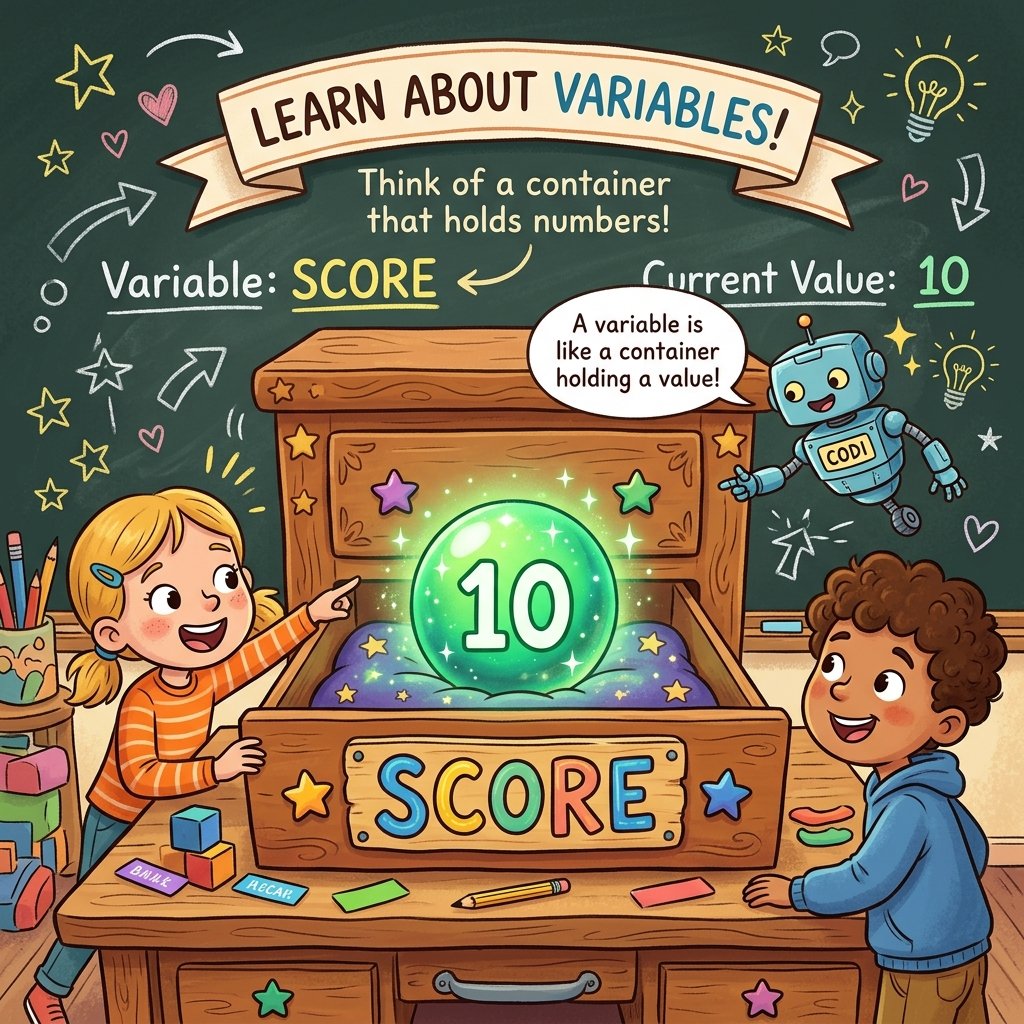
2. Create custom variables in Scratch
To create a variable, go to the orange Variables category and click "Make a Variable". Give it a descriptive name (like 'lives' or 'timer'). You can set it to be "For all sprites" (global, accessible by any script) or "For this sprite only" (local, private to this sprite). Scratch will then generate blocks matching your new variable.
Descriptive naming is key. Names like 'health_points' or 'speed_modifier' are much easier to understand than single letters like 'h' or 's', helping avoid errors in large projects.
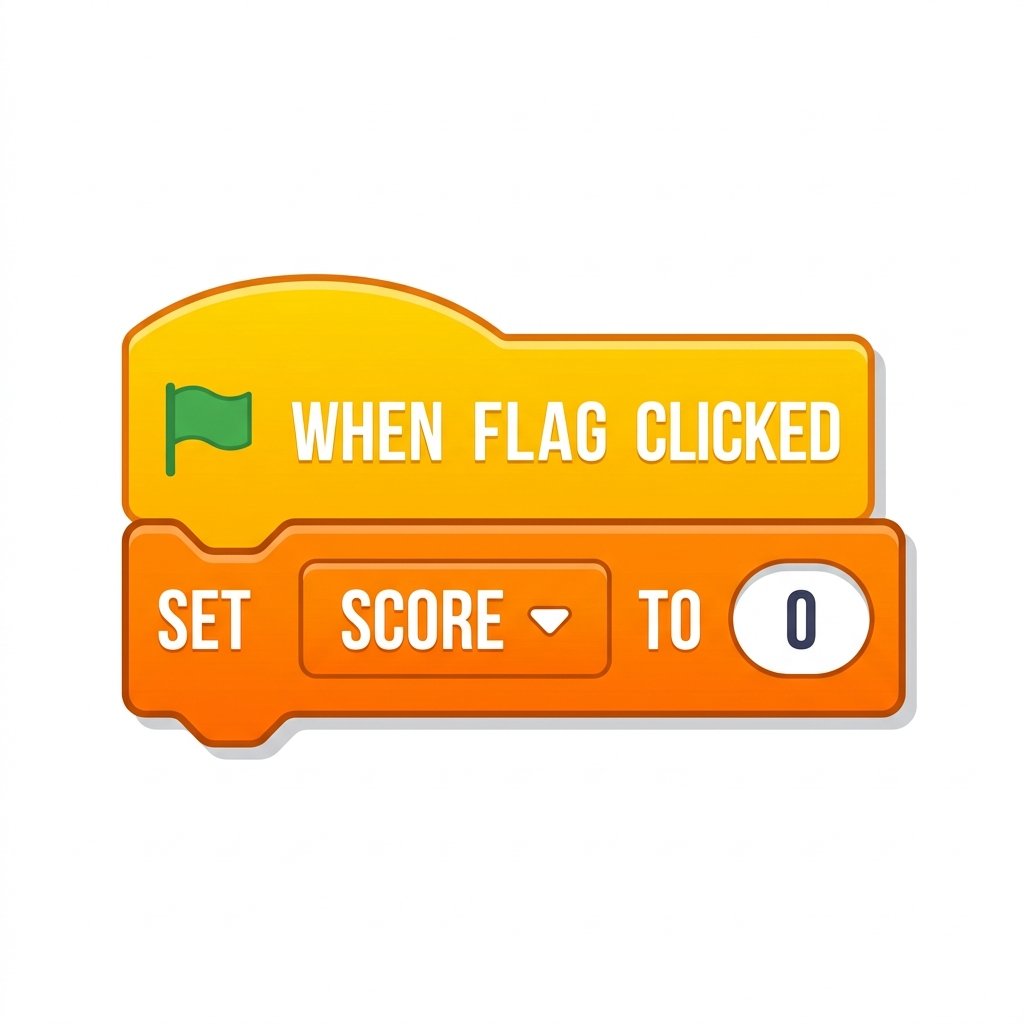
3. Initialize variables securely on startup
Initialization is the process of setting a variable to a starting value
when the program begins. It is vital to set your variables to their correct starting
values under a when green flag clicked event. For example, setting 'score'
to 0 or 'lives' to 3 ensures that every time a user restarts the project, they begin
with a fresh, correct game state.
Failing to initialize variables causes bugs. If a player starts a new game with their old high score or starts with zero lives, the project will break immediately. Resetting states under the green flag block keeps the game clean.
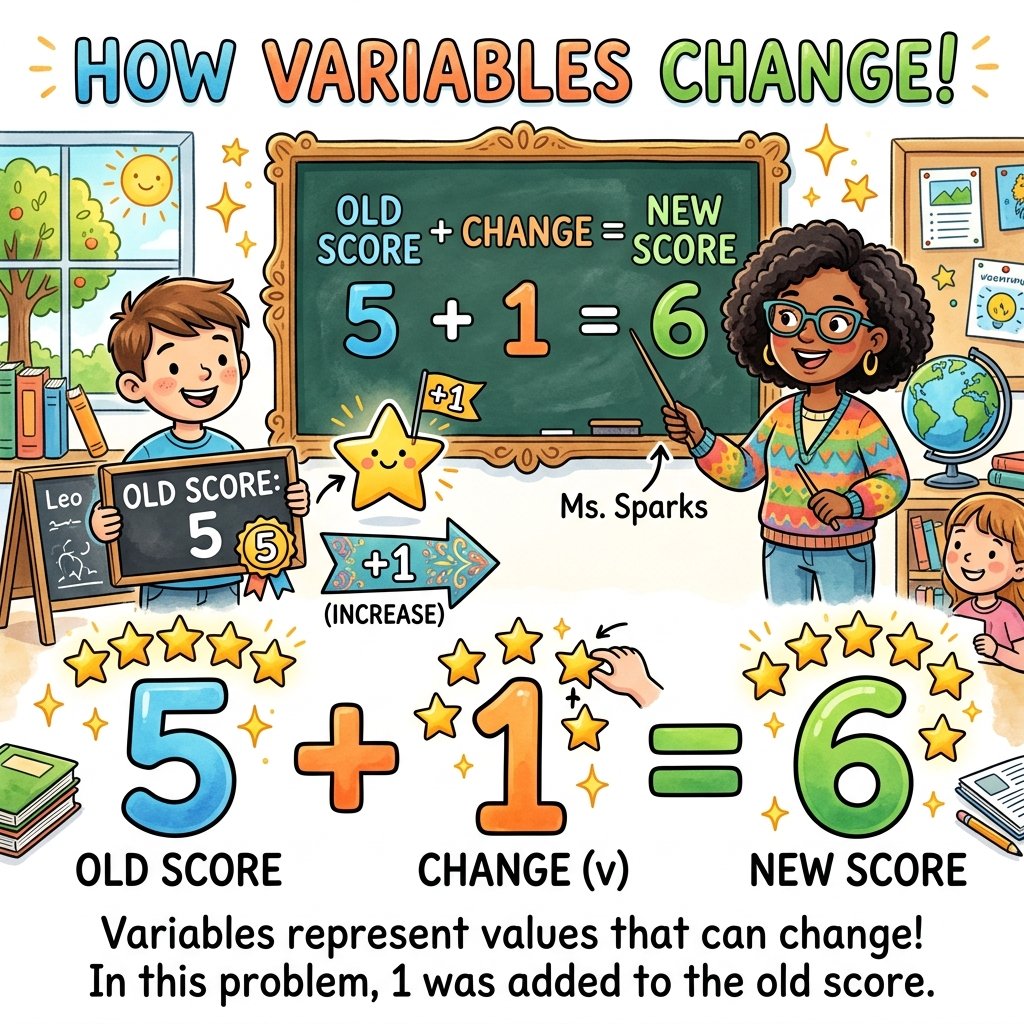
4. Update variables dynamically during gameplay
During a game, variable values need to update based on user actions. Using blocks like
change [variable] by 1 adds 1 to the current value, while
change [variable] by -1 subtracts 1. These operations allow variables to
dynamically reflect game events, such as earning points or taking damage.
Variable changes drive game progression. If your code checks health levels and subtracts 1 when touching hazards, variables represent player condition directly, triggering state changes when the value reaches zero.
Build a Clicks Tracker
- Open Scratch and select the Variables category. Click 'Make a Variable', name it 'Click Count', and check 'For all sprites'.
- On the Cat sprite, add a startup script: when green flag clicked, initialize 'Click Count' by setting it to 0.
- Add a click trigger script on the Cat: when this sprite clicked, play sound 'Pop', and change the 'Click Count' variable by 1.
- Add a say block inside the click script to make the Cat announce: 'You have clicked me [Click Count] times!' by using the green 'join' operator block.
Model Answer Walkthrough
- Create the variable: Click on 'Make a Variable' and name it 'Click Count'.
- Initialize on startup: [when green flag clicked] -> [set [Click Count] to (0)] (Variables Category).
- Handle user click events: [when this sprite clicked] -> [start sound (Pop)] -> [change [Click Count] by (1)] (Variables Category).
- Make the sprite announce the count: [say (join (You have clicked me ) (Click Count)) for (2) secs] (use the [join] block from the Operators Category to connect text and the variable block).
- Click the Green Flag to reset the count to 0, then click the Cat sprite to see the variable update in real time!