Sensing and Collision Detection
- Integrate 'sensing' blocks directly into conditional statements.
- Detect collision events when a sprite touches another specific sprite.
- Detect boundary limits using 'touching color' sensing blocks.
- Program immediate reaction behaviors (e.g., reset position) upon collision.
1. Integrate sensing blocks into conditionals
Sensing blocks (light blue) gather information about the environment, such as mouse coordinates, distance, keypresses, or collisions. To make a program react to this information, you place these sensing blocks inside the hexagon slot of conditional statement blocks, creating scripts that constantly monitor and respond to changes on the stage.
Sensing blocks are the eyes and ears of your code. By nesting them inside conditionals, you program your sprites to be aware of their surroundings, enabling interactions like opening doors or flashing warnings when coordinates cross.
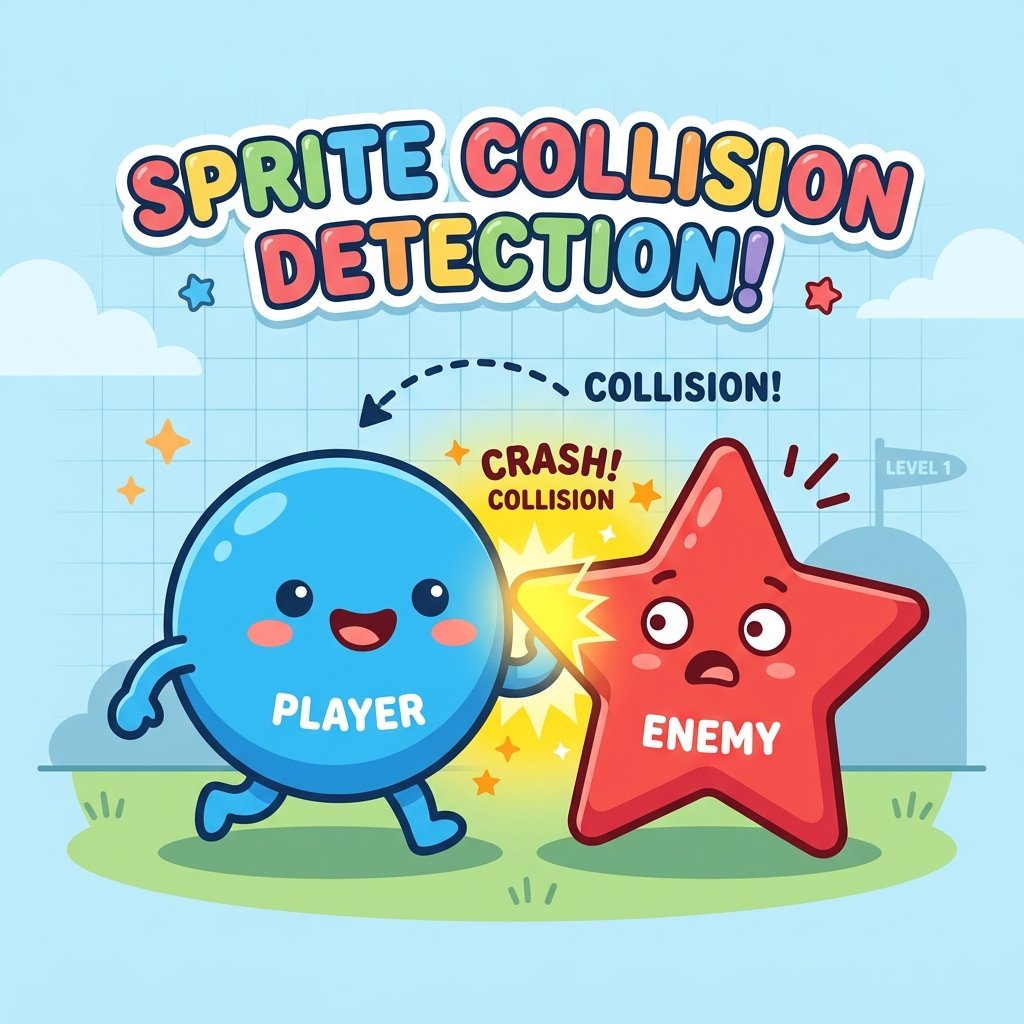
2. Detect sprite-to-sprite collision events
Collision detection is a core mechanic in game design. Using the
touching [sprite]? sensing block, a sprite can detect when its boundary
overlaps with another sprite. For example, a player character touching a coin sprite can
trigger a script that increases the score and hides the coin, or touching an enemy can
trigger a 'game over' state.
Sprite collision calculations run in the background. The computer checks if any overlapping pixels exist between the two bounding boxes in each frame. If a collision is detected, it triggers the action pathway, allowing real-time combat or item gathering.
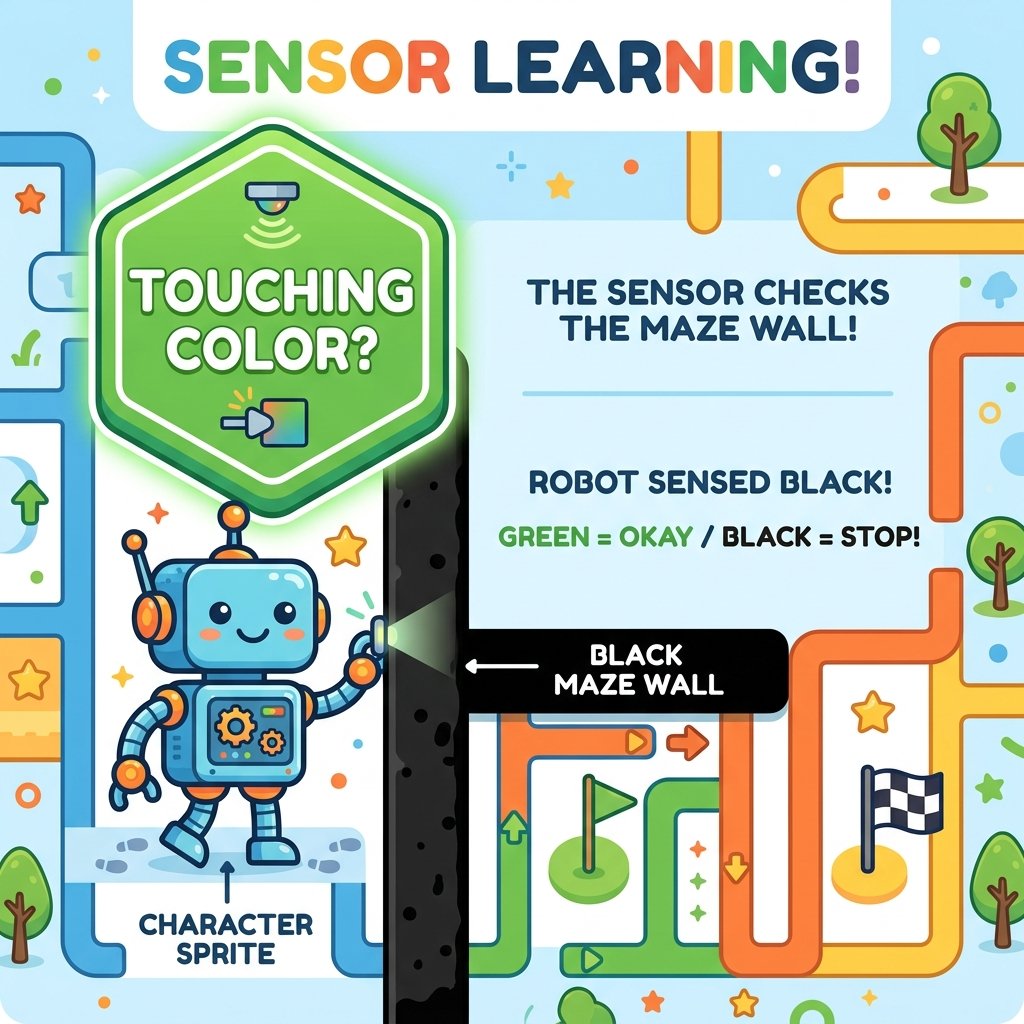
3. Detect boundary limits using color sensing
You can also detect boundaries using the touching color [ ]? block. This
checks if any pixel of the sprite is overlapping with a specific color on the Stage
backdrop. This is highly useful for coding boundary limits, walls in maze games, or
track edges in racing games without needing complex coordinate math.
Color sensing is useful for complex maze paths. By setting the wall color once, you don't need to specify coordinates for every single wall. The sprite automatically blocks movement whenever it comes in contact with that color, simplifying maze construction.
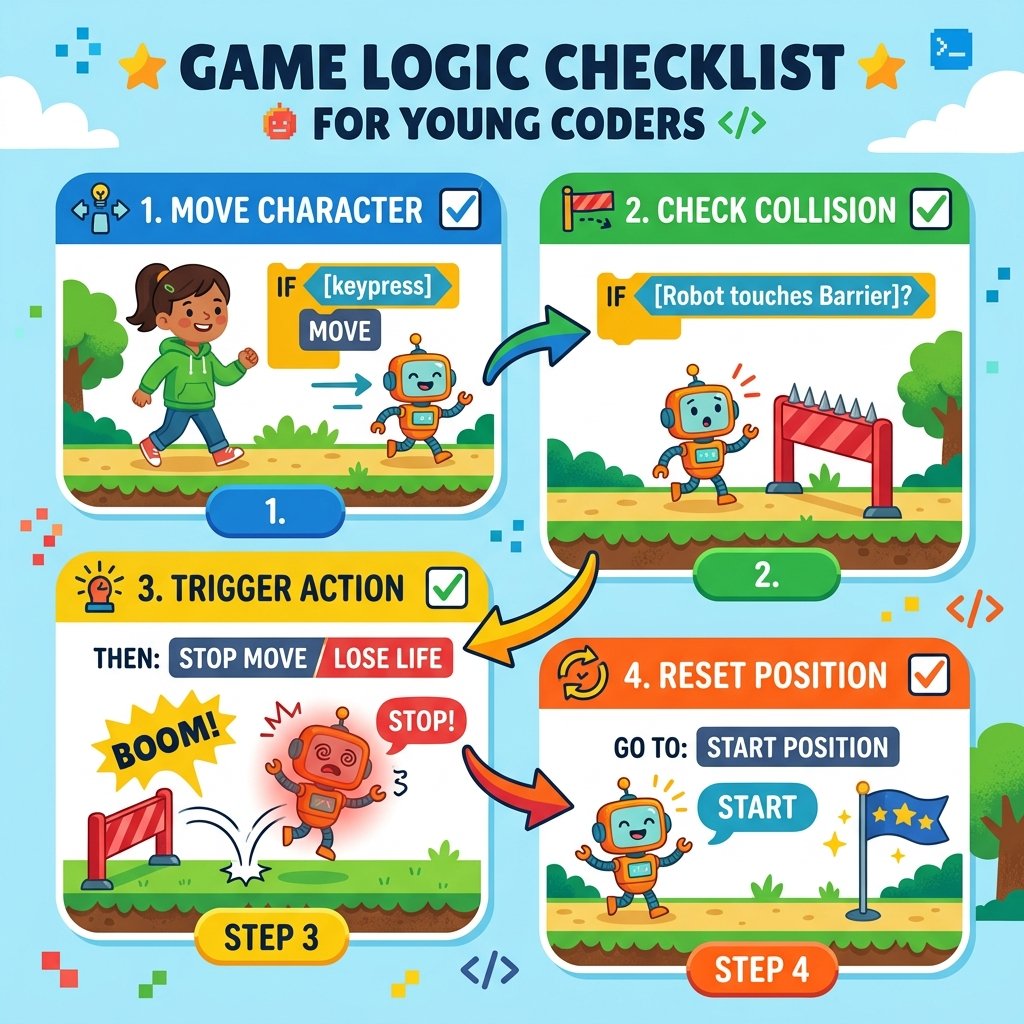
4. Program immediate collision reactions
When a collision is detected, the program must respond. This reaction is coded inside the conditional statement. For example, if a player sprite touches a maze wall, the script can immediately reset its position to the starting coordinates or move it backward to block it from passing through the wall.
Reactions can be visual, auditory, or coordinate-based. Resetting coordinates to starting points creates a penalty for hit collisions. You can also play sound effects or reduce health stats to provide clear feedback to the player.
Build a Collision Alarm
- Add a Cat sprite (Player) at the left side of the stage, and an 'Apple' sprite (Goal) on the right side.
- Add a script on the Cat: when green flag clicked, go to x: -200, y: 0. Loop forever: move 4 steps, and if 'touching [Apple]?', then play sound 'Chirp' and say 'Got it!' for 2 seconds.
- Draw a vertical red line in the middle of the backdrop using the Paint Editor.
- Add a second check inside the Cat's loop: if 'touching color [red]?', then go back to the starting point: x: -200, y: 0.
Model Answer Walkthrough
- Initialize the player sprite: [when green flag clicked] -> [go to x: (-200) y: (0)].
- Set up the main loops checking loop: [forever] (Control Category).
- Add movement: [move (4) steps] (Motion Category).
- Insert the target collision check: [if
then] -> [start sound (Chirp)] -> [say (Got it!) for (2) secs]. - Insert the color boundary check: [if
then] -> [go to x: (-200) y: (0)] (Motion Category). - Run the project. The Cat will walk right, reset when it hits the red line, and say 'Got it!' if it successfully reaches the Apple.