Conditional Logic (If/Then)
- Define conditional logic and its role in interactive programming.
- Evaluate true/false conditions to control program flow.
- Use 'If-Then' blocks to change sprite behavior based on specific rules.
- Construct branching scripts that react differently based on current states.
1. Define conditional logic and its interactive role
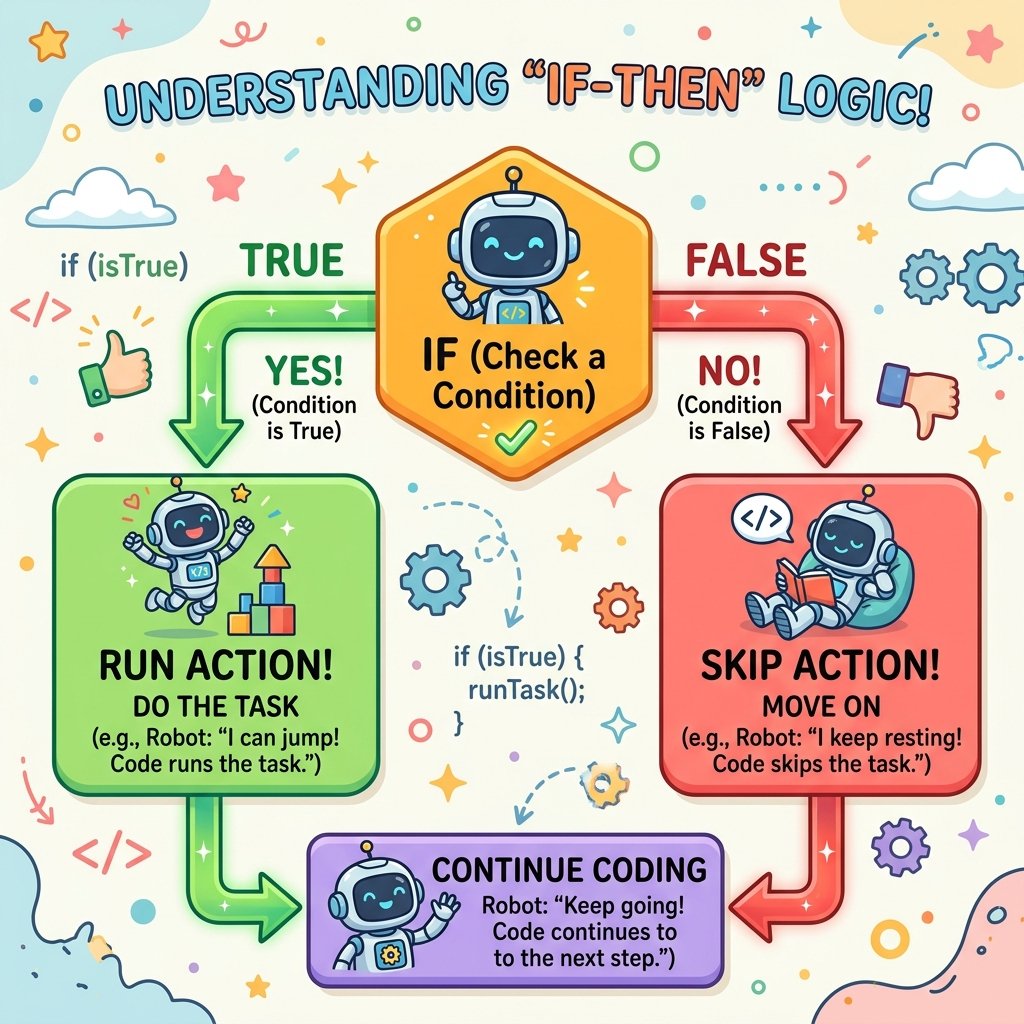
Conditional logic allows a program to make decisions and run different blocks of code depending on the situation. It follows the structure: "If a certain condition is met, then perform this action." This is how programs react to user decisions, game events, or calculations, transforming linear scripts into interactive code.
In game design, conditional logic is what makes software intelligent. It allows the game to ask questions: Is the timer at zero? Has the player touched the lava? Is the score high enough? Based on the answers, the program redirects the flow of execution, creating a dynamic experience.
2. Evaluate True/False conditions
A conditional statement evaluates a Boolean expression, which can only
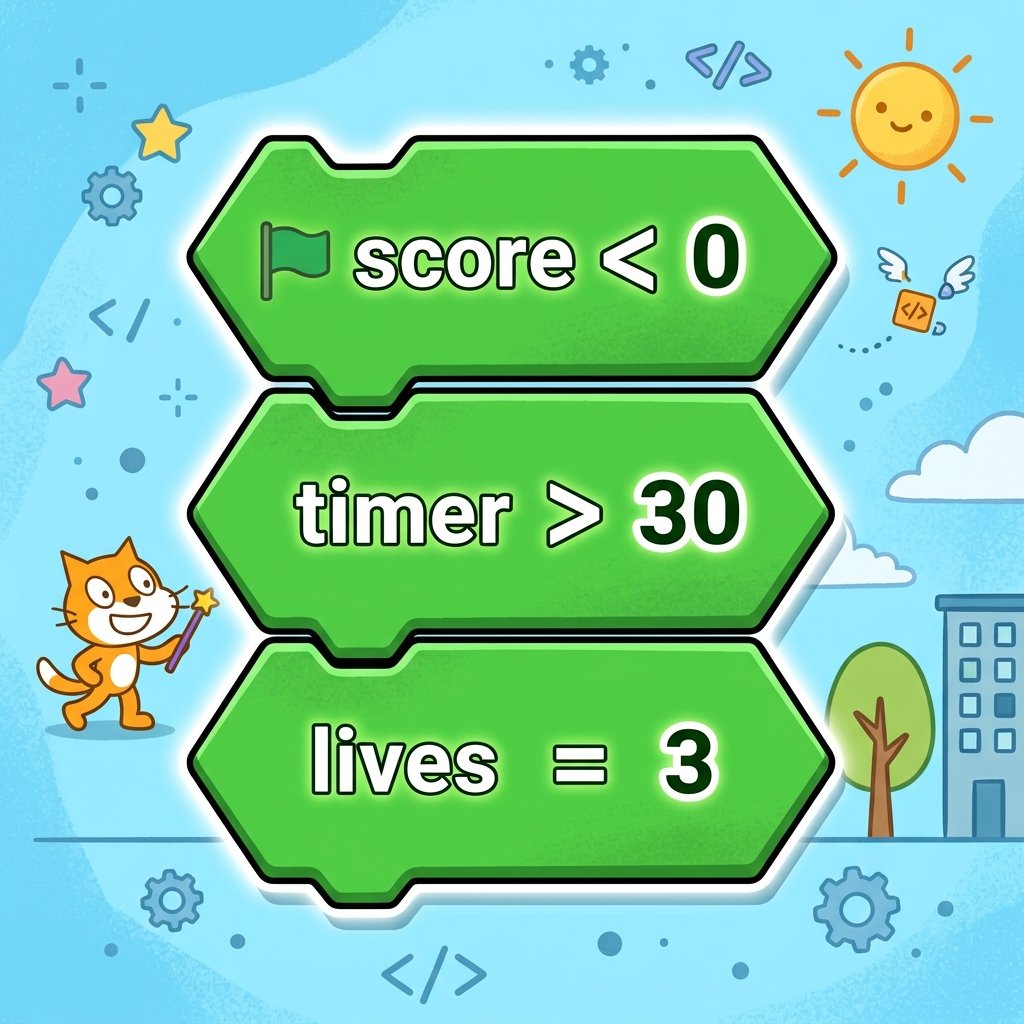
be either True or False. In Scratch, these conditions
are shaped like elongated hexagons (e.g., mouse down? or
key space pressed?). The program evaluates the condition: if it is True,
the code inside the block executes; if it is False, the code is skipped.
Boolean logic is the foundation of digital computation. The computer evaluates comparisons like: is X position > 200? Is health < 1? If the statement is correct, the Boolean resolves to True, opening the code pathway.
3. Use 'If-Then' blocks to change behavior
The standard if [condition] then block contains a slot for a
hexagon-shaped condition. If the check returns True, the script runs the blocks
nested inside the mouth of the 'if' container. This is used to check for
actions, like checking if a player character is touching a hazard to reduce
their lives.
By nesting 'If-Then' blocks inside a central game loop, the program continuously checks conditions. This allows actions like applying gravity only when the character is not touching the floor, enabling platformer physics.
4. Construct branching scripts based on state
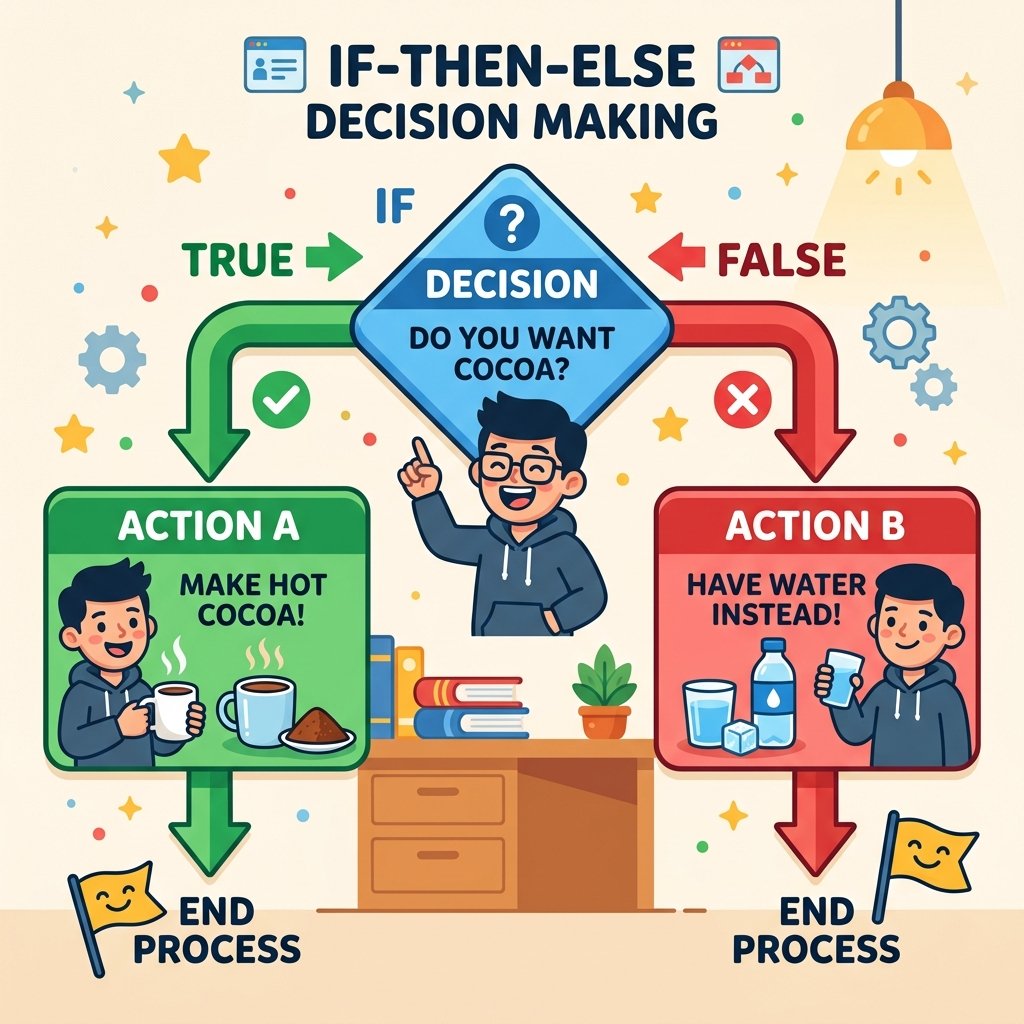
For more complex decisions, the if [condition] then / else block
provides two separate code paths. If the condition is True, the program runs the
blocks in the first mouth (the 'then' section) and skips the second. If the
condition is False, it skips the first section and runs the blocks in the second
mouth (the 'else' section). This ensures one of the two actions always runs
based on the state of the condition.
Branching logic allows you to manage states like game modes. For example, if 'lives' > 0, keep playing (move and sensing); else, trigger a Game Over screen. This divides your scripts into distinct branches based on state variables.
Design a Color Changer Key
- Add a 'Button' sprite to the Stage and set its size to 150%.
- Add a 'forever' loop under a 'when green flag clicked' event block.
- Inside the forever loop, insert an 'if-then-else' block.
- Drag a green 'key [space] pressed?' sensing block into the hexagon slot of the conditional.
- In the 'then' mouth of the block, snap: change color effect by 25.
- In the 'else' mouth of the block, snap: set color effect to 0.
- Run the project. Press and release the spacebar to watch the button change colors.
Model Answer Walkthrough
- Start the base script: [when green flag clicked] -> [forever] (Control Category).
- Nest the branching block inside: [if
then] (Sensing Category). - Inside the 'then' mouth (True path), snap: [change [color] effect by (25)] (Looks Category).
- Inside the 'else' mouth (False path), snap: [set [color] effect to (0)] (Looks Category).
- Run the project. The button will flash colors while you hold space, and reset to its original color when released.