The Power of Loops
- Differentiate between finite ('repeat') and infinite ('forever') loops.
- Reduce code redundancy by replacing repetitive blocks with loops.
- Apply loops to repeat actions reliably and efficiently.
- Nest loops within other scripts to create complex repeating patterns.
1. Differentiate between finite and infinite loops
A loop is a programming structure that repeats a block of code multiple times. This is one of the most powerful concepts in computer science. In Scratch, loops are found in the gold Control category:
- Finite Loops (Repeat N times): These loops repeat their internal blocks for a specific, set number of times (e.g., repeat 10 times) and then automatically stop, passing control to the code snapped below the loop.
- Infinite Loops (Forever): These loops repeat their internal blocks continuously without stopping. There is no way to escape an infinite loop unless the project is stopped or a 'stop all' block is called. They are used for game loops, movement controls, and background checks.
Finite loops are ideal when the number of iterations is known beforehand, like animating a 10-frame walk cycle. Infinite loops are the heartbeat of games, running continuous checks (like monitoring user input or boundaries) from the moment the game starts until the user exits.
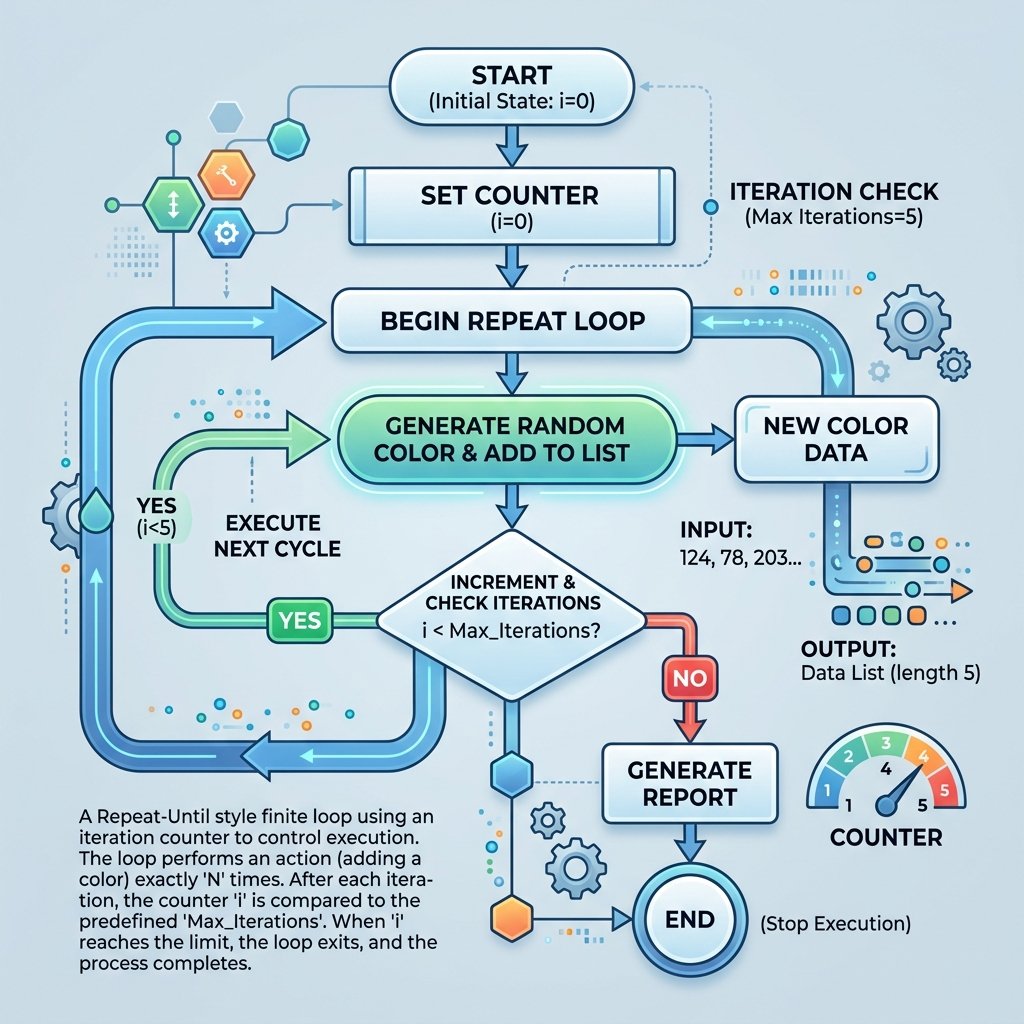
2. Reduce code redundancy using loops
Code redundancy occurs when you write the same block instructions repeatedly. For
instance, duplicating move 10 steps and wait 0.1s ten times
creates a massive, hard-to-read script. Replacing that column of blocks with a single
repeat (10) loop makes your program shorter, cleaner, and much easier to
debug or edit.
By wrapping repetitive blocks inside a loop, you conform to the DRY programming principle: **Don't Repeat Yourself**. If you later decide to change the movement distance from 10 steps to 15, you only need to change a single block value inside the loop, rather than modifying 10 individual blocks.
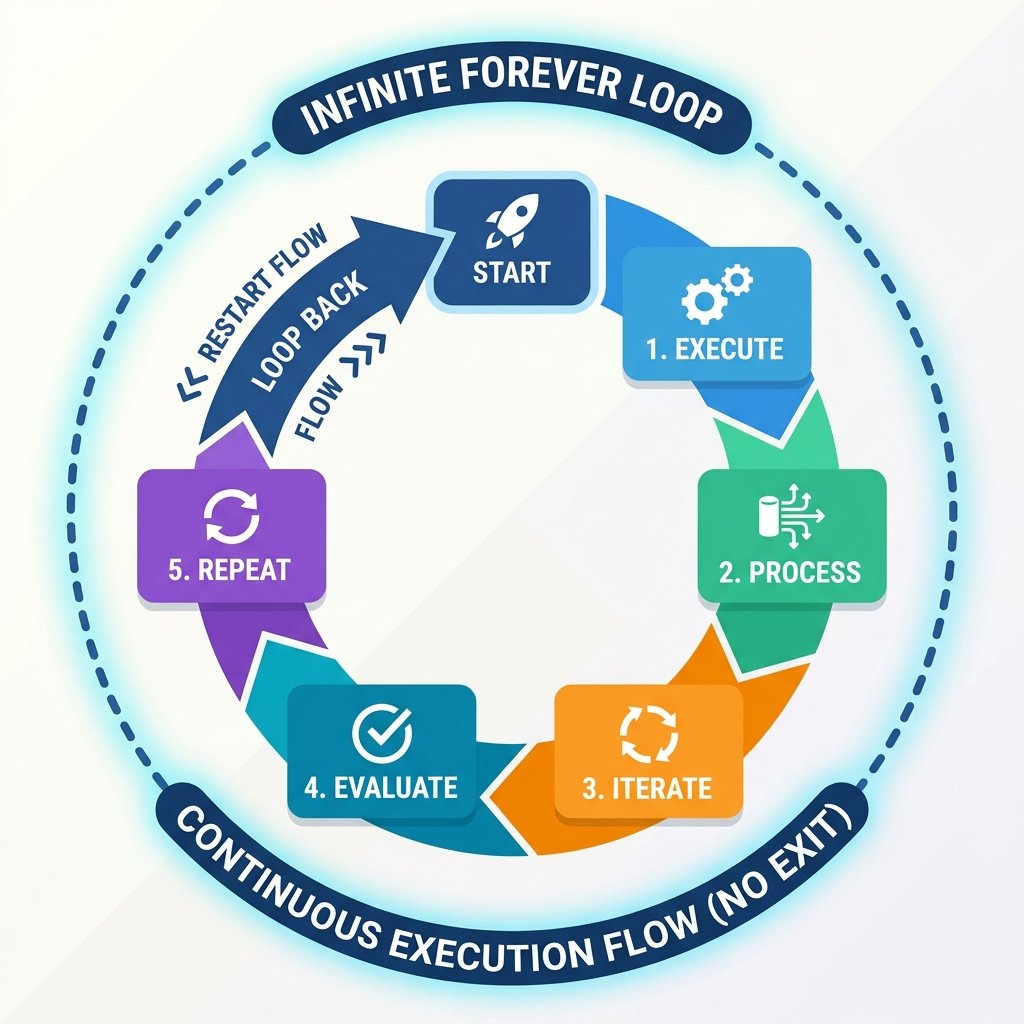
3. Apply loops for reliable, efficient execution
Loops ensure actions run reliably. For example, if you want a bird sprite to flap its
wings continuously, placing a costume-switch block inside a forever loop
keeps the animation running automatically. This is much more efficient than triggering a
new event block for every flap.
Using loops also ensures timing consistency. The computer triggers each loop iteration at a precise rate, keeping game animations running smoothly without stuttering or slowing down, optimizing performance.
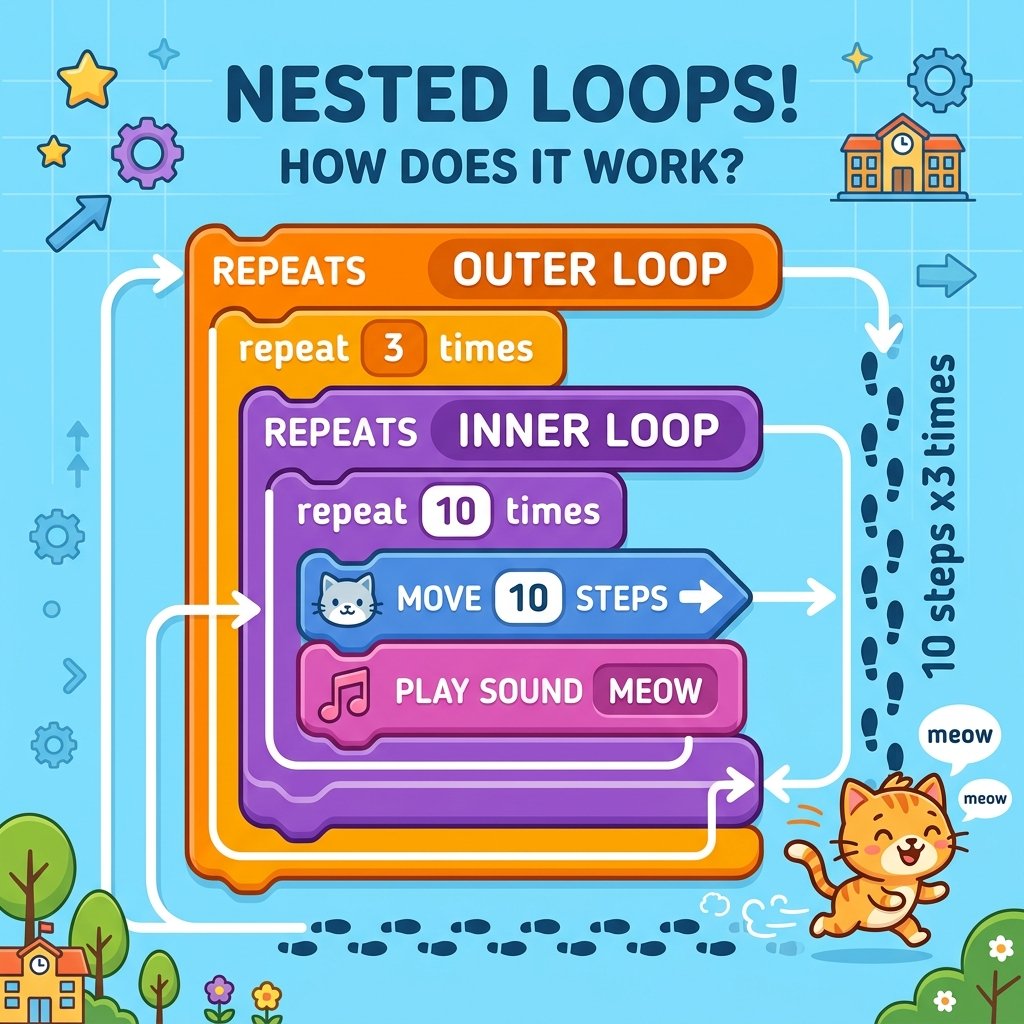
4. Nest loops to create complex patterns
Nesting means placing one loop inside another. When you nest loops, the computer enters the outer loop, enters the inner loop, runs the inner loop to completion, exits the inner loop, advances the outer loop by one step, and repeats the cycle. This is used to draw complex geometry, generate grids, or manage nested game states.
For example, if you nest a 'repeat 10' loop inside a 'repeat 3' loop, the code inside the inner loop will execute a total of 30 times (3 * 10). This structure is useful for drawing shapes with rotating patterns or generating grids of blocks for arcade games.
Design a Spiral Artist
- Add the 'Pencil' sprite and load the Scratch 'Pen Extension' by clicking the Add Extension button in the bottom left.
- Create an initialization script: when green flag clicked, clear all drawings, pen up, set pen color to blue, set pen size to 2, go to coordinates (0, 0), pen down.
- Drag out a 'repeat (36)' finite loop block and snap it below.
- Inside this loop, nest an inner loop: 'repeat (10)'.
- Inside the inner loop, snap: move 10 steps, turn right 10 degrees, change pen color by 10.
- Outside the inner loop, but inside the outer loop, snap: turn right 15 degrees.
Model Answer Walkthrough
- Initialize pen controls: [when green flag clicked] -> [erase all] -> [pen up] -> [go to x: (0) y: (0)] -> [pen down] (Pen Extension).
- Place the outer finite loop: [repeat (36)] (Control Category).
- Nest the inner loop inside it: [repeat (10)] (Control Category).
- Configure inner loop drawing steps: [move (10) steps] -> [turn right (10) degrees] -> [change pen color by (10)] (Pen Category).
- Add rotation step on outer loop boundary: [turn right (15) degrees] (this block must sit below the inner loop box, but inside the outer loop box).
- Run the code to see the pencil draw a colorful, complex geometric spiral pattern using nested loop mathematics!