Mini-Project: Interactive Storybook
- Design a coherent interactive program featuring multiple scenes (backdrops).
- Integrate events, messages, and sequencing to drive a digital narrative.
- Use dialogue bubbles to convey a story visually.
- Test the story from start to finish to ensure logical event progression.
1. Design a multi-scene program with backdrops
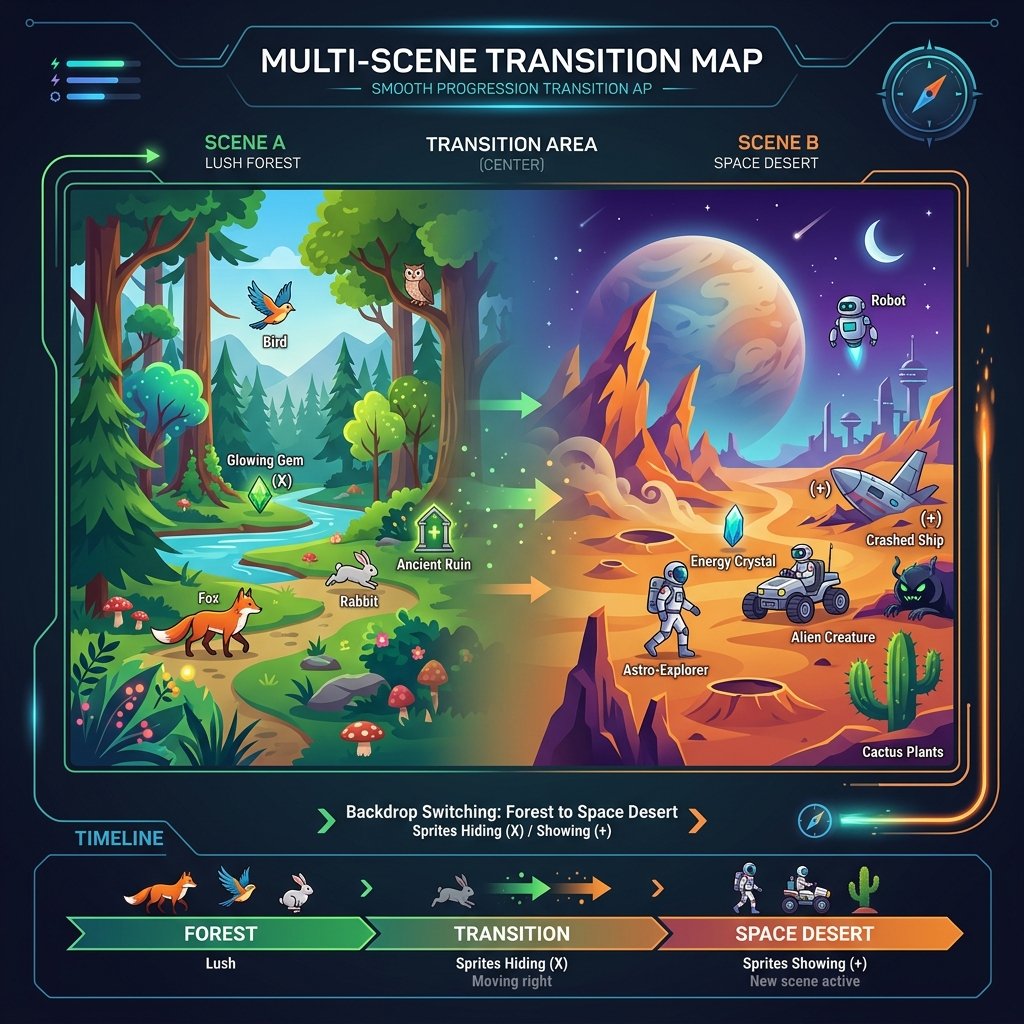
An interactive storybook relies on transitions between different locations (scenes). In Scratch, this is managed by changing the Stage's backdrop. As the backdrop changes, we coordinate our sprite characters to show or hide, reflecting whether they are present in the new scene. This requires structured coordination between the Stage backdrop and sprite visibility logic.
For example, if Scene 1 is a Castle, you load the 'Castle' backdrop. When the story transitions to a Forest, you load the 'Forest' backdrop. Any character who belongs in the Castle but not the Forest must receive a signal to hide, while Forest characters receive a signal to show.
2. Integrate events, messages, and sequencing
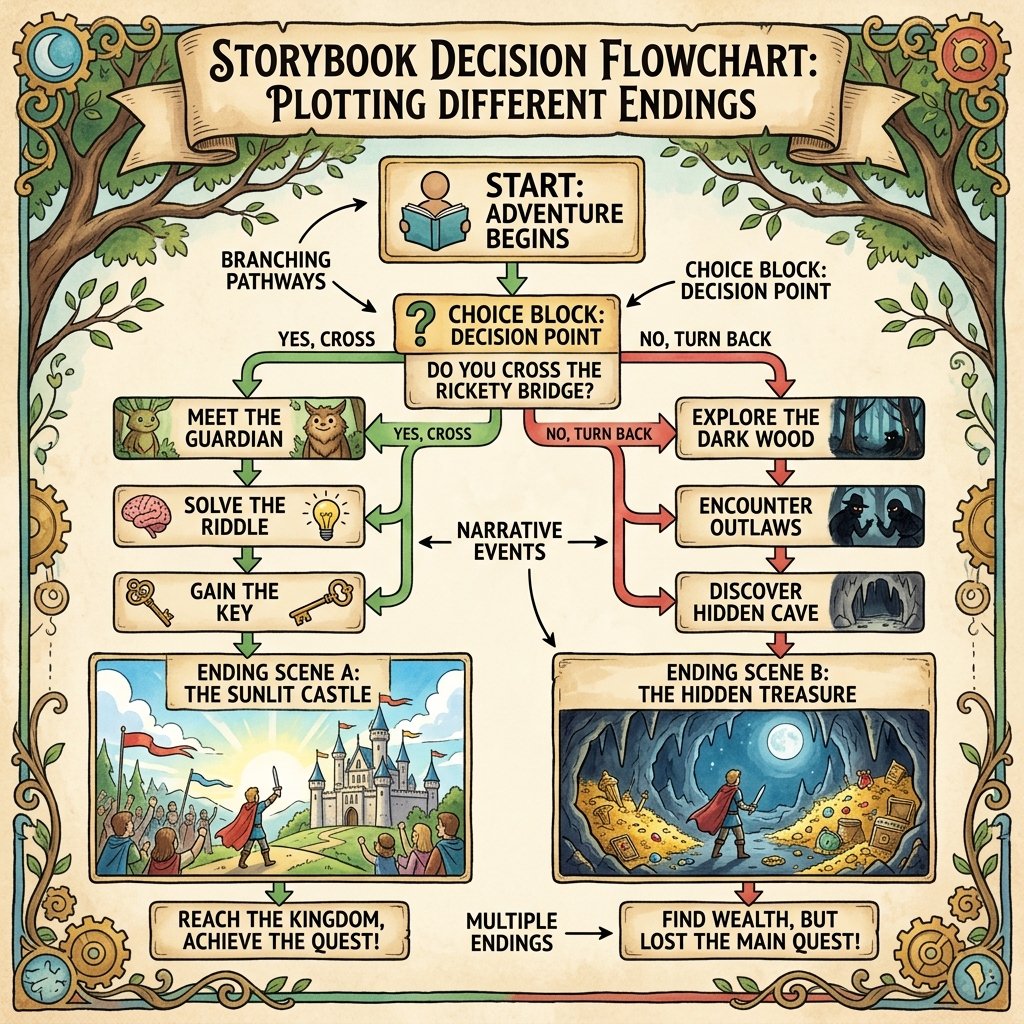
To drive a digital narrative, you combine timing sequences, user clicks, and broadcast messages. When a scene finishes, a broadcast signal like "Scene2" is sent. The Stage changes its backdrop, the current characters hide, and new characters reveal themselves and start talking. This structure introduces students to narrative logic, scene transitions, and state management.
Using events like clicks to progress the story puts the user in control. A reader can click a door sprite to enter the next room, firing a click event that broadcasts 'enter_room', triggering backdrop switches and dialogue. This turns a linear story into an interactive game.
3. Use dialogue bubbles for visual narrative
Dialogue is written using the Looks category blocks:
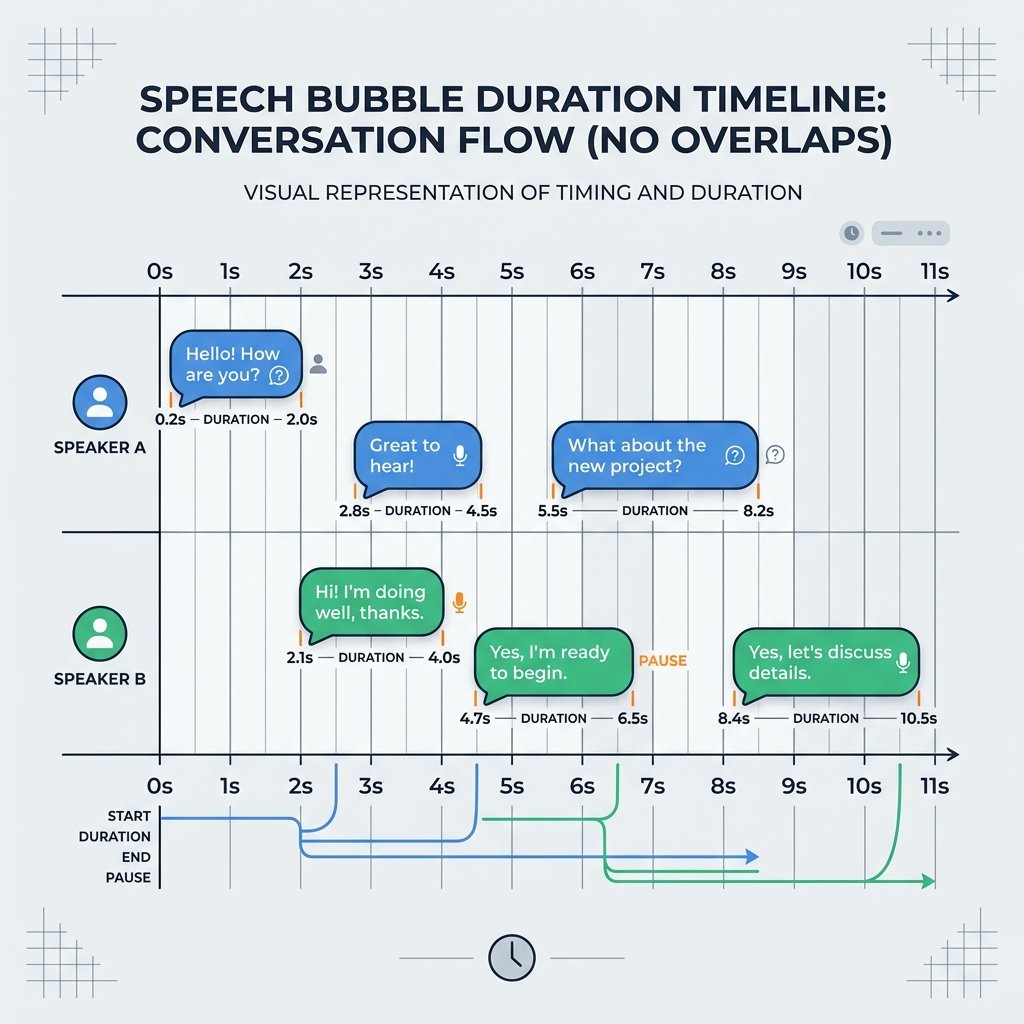
say [text] for (N) seconds. Writing text within these bubbles displays
words on screen inside styled callouts. Ensuring proper pacing requires coordinating
durations so text is easy to read before disappearing, maintaining a clean visual pace.
Speech bubbles are the visual voice of your actors. You must balance the text length with the duration it remains on screen. A good rule of thumb is 1 second per 3 words. Writing short, punchy dialogues keeps the reader engaged and prevents text from spilling out of the screen boundaries.
4. Develop testing habits for progression checks
Testing is a vital part of software development. As projects grow, logic errors can slip in (e.g., a character appearing in the wrong scene or a dialogue block playing too early). Developing testing habits means running your program from the start (green flag) after making changes, checking that scene transitions occur correctly, dialogue bubbles do not overlap, and that the story runs smoothly to the end.
A systematic testing routine helps catch bugs before they reach the user. When testing, try clicking options in different orders, or clicking early before dialogue finishes, to check if your program handles unexpected interactions cleanly without breaking.
Build a 2-Scene Storybook
- Choose two Stage backdrops (e.g., 'Desert' and 'Space'). Choose a character sprite (e.g., 'Goblin').
- On the Stage, set a green flag script: Switch backdrop to 'Desert', then broadcast 'Scene1_Start'.
- On the Goblin sprite, write a script: when I receive 'Scene1_Start', show, go to coordinates (-100, -50), say 'It's so hot in this desert! Click me to escape!' for 4 seconds.
- Add a click trigger on the Goblin: when this sprite clicked, say 'Teleporting!' for 1 second, switch backdrop to 'Space', and broadcast 'Scene2_Start'.
- On the Stage, add a script: when backdrop switches to 'Space', play sound 'Space Ripple'.
- On the Goblin, add another script: when I receive 'Scene2_Start', say 'Wow! Space is freezing!' for 3 seconds.
Model Answer Walkthrough
- Set Stage startup script: [when green flag clicked] -> [switch backdrop to (Desert)] -> [broadcast (Scene1_Start)].
- Configure Goblin initialization: [when I receive (Scene1_Start)] -> [show] -> [go to x: (-100) y: (-50)] -> [say (It's so hot in this desert! Click me to escape!) for (4) secs].
- Configure Goblin interaction click handler: [when this sprite clicked] -> [say (Teleporting!) for (1) secs] -> [switch backdrop to (Space)] -> [broadcast (Scene2_Start)].
- Add the closing scene code on Goblin: [when I receive (Scene2_Start)] -> [say (Wow! Space is freezing!) for (3) secs].
- Test from start to finish by pressing the Green Flag, reading the text, and clicking the Goblin to watch the scene transition cleanly!