Broadcasting and Messages
- Explain the concept of broadcasting to coordinate multiple sprites invisibly.
- Send custom message events from one sprite to another.
- Program receiving scripts to trigger actions only when a specific message arrives.
- Design an interactive sequence where sprites 'talk' back and forth.
1. Explain the concept of broadcasting
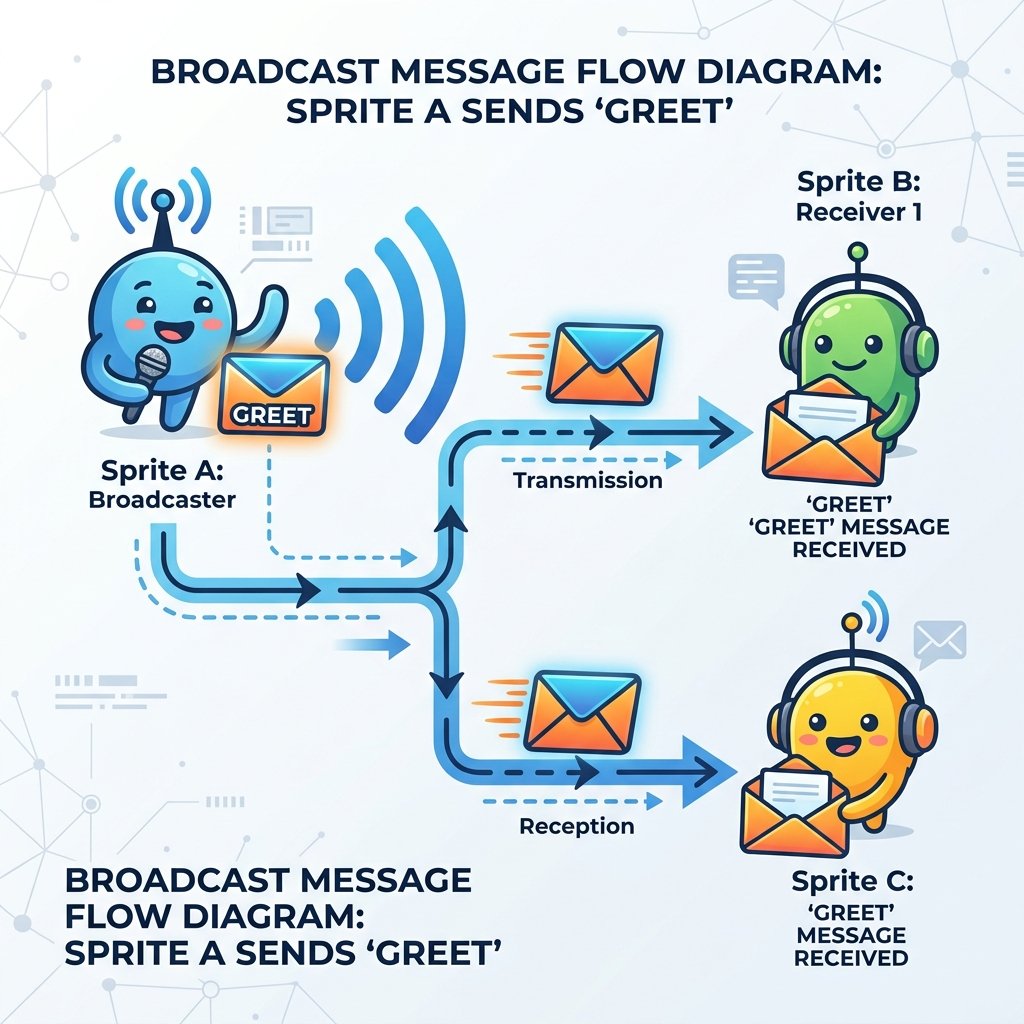
In Scratch, sprites operate in their own independent timelines. If you want Sprite A to tell Sprite B to do something, they need a way to communicate. Broadcasting is a message-passing mechanism. When a sprite sends a broadcast, it yells out a message to the entire program. All other sprites (and the Stage) listen. Any script starting with a matching receiver block will trigger, allowing clean cross-sprite coordination.
Broadcasting is like a school principal making an announcement over the PA system. The principal speaks (broadcasts), and all classrooms (sprites) hear it. However, only the classrooms that need to react to that specific announcement will take action. In coding, this decouples scripts and coordinates events cleanly.
2. Send custom message events
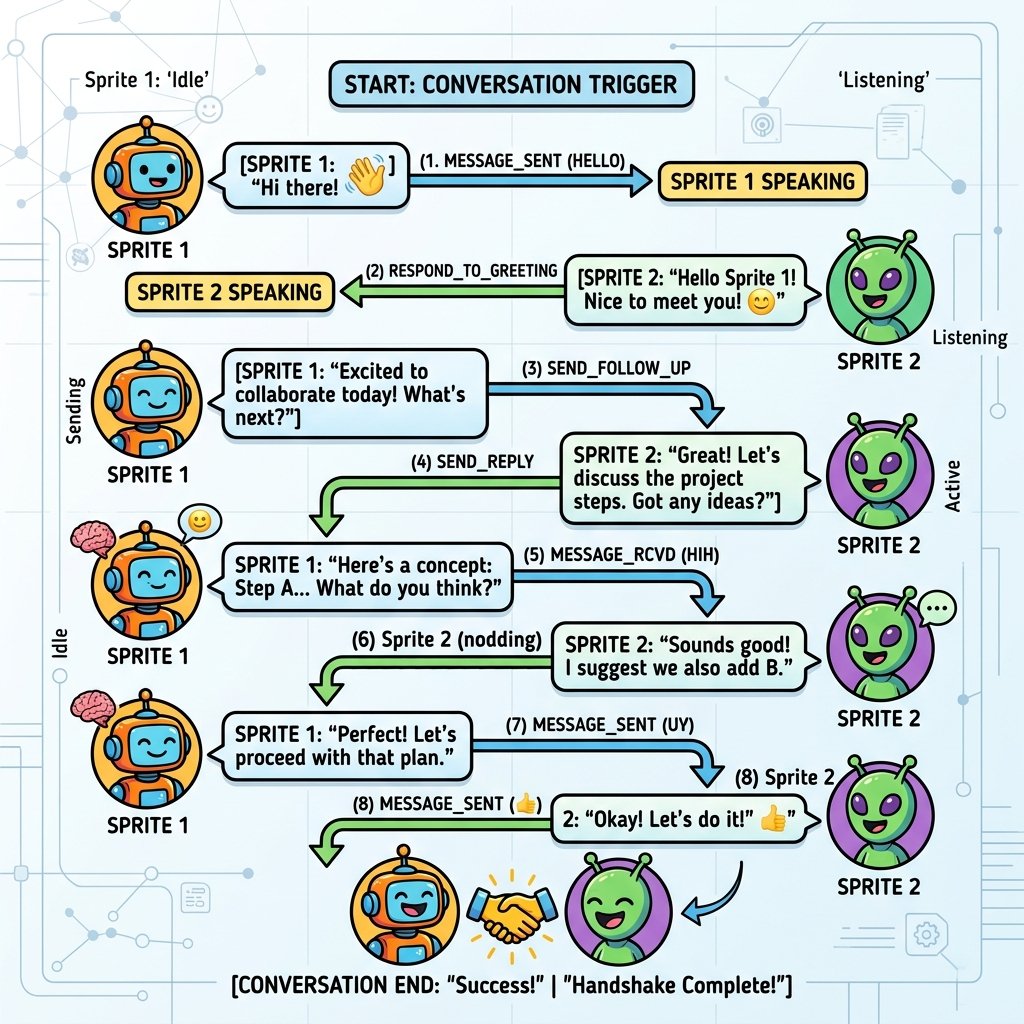
Using the broadcast [message1] block, you can define custom text triggers.
When a sprite runs this block, it sends the specified text message globally. You can
also use broadcast [message1] and wait, which pauses the sender script
until all receivers have finished executing their code. This is essential for
controlling dialog pacing and event triggers.
Custom messages can be named whatever you want, such as 'game_start', 'enemy_spawn', or 'stage_clear'. Naming them descriptively is key to organizing large programs, ensuring that you don't confuse dialog triggers with game state transitions.
3. Program receiving scripts to trigger actions
To capture broadcasts, you use the yellow when I receive [message1] event
block. This block acts as a gateway. It sits at the top of a script, waiting inactive.
When the matching message is sent, the block activates and runs its nested actions.
Multiple sprites can listen for the same broadcast, letting a single message trigger
actions in different characters at the same time.
For example, broadcasting 'game_over' can trigger Giga to say 'Oh no!', Tera to hide, the backdrop to switch to red, and the music to play a sad sound. This enables complex, multi-event responses to a single game trigger.
4. Design back-and-forth dialogue scripting
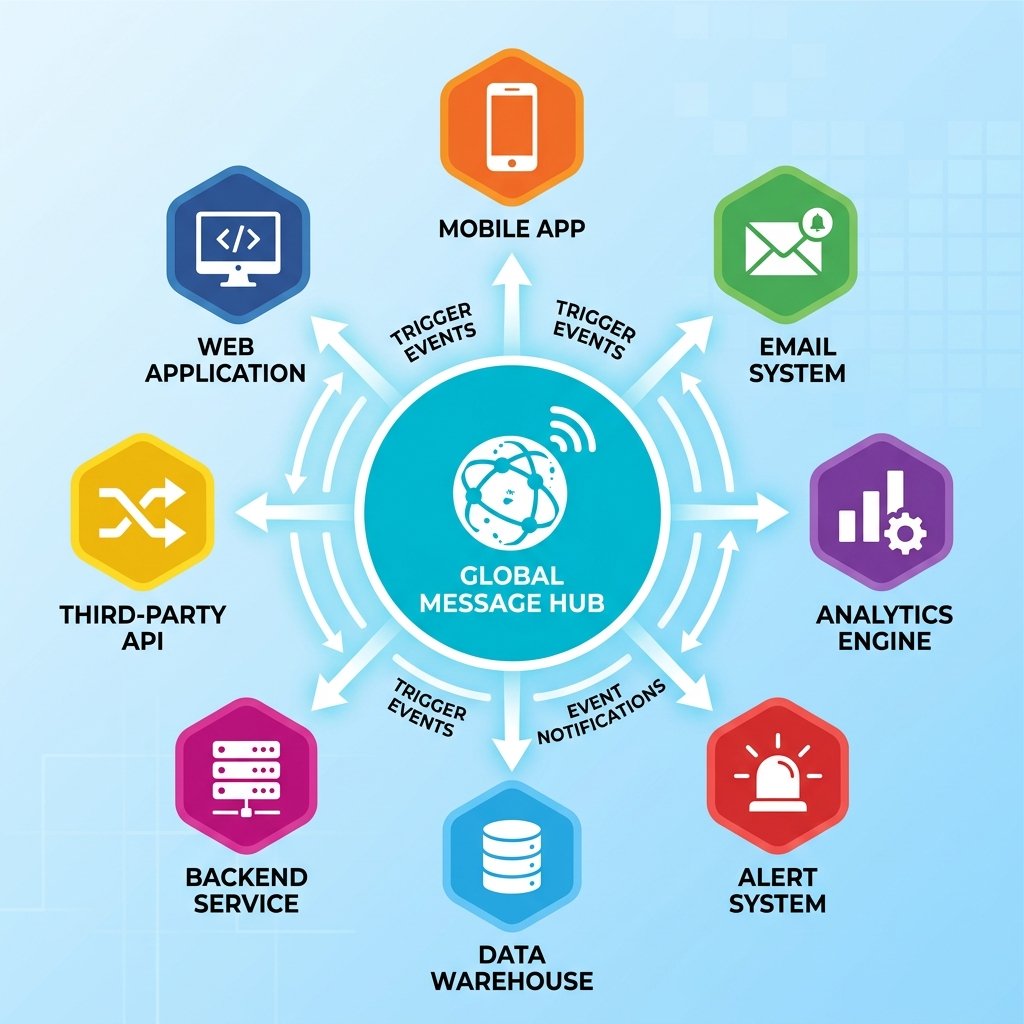
Using sequential broadcasts, you can script complex conversations between characters. Sprite A speaks, then broadcasts "B_turn". Sprite B receives "B_turn", speaks, and broadcasts "A_turn". This handshake cycle keeps speech bubbles in sync and prevents sprites from talking over each other, introducing students to basic network protocol concepts.
Without broadcasts, matching talk timing requires tedious wait-time math. If Sprite A speaks for 3 seconds, Sprite B must wait exactly 3 seconds. If you later change Sprite A's speech to 4 seconds, you must manually find and update Sprite B's wait block. Broadcasting replaces this math with robust event signals.
Coordinated Talk Show
- Add two sprites (e.g., 'Giga' and 'Tera') standing opposite each other on the Stage.
- On Giga, set up a green flag script: Say 'Hello Tera!' for 2 seconds, then broadcast a new message named 'Giga_Greet'.
- On Tera, create a script starting with 'when I receive Giga_Greet'.
- Under Tera's receiver, snap: Say 'Hi Giga! Ready to code?' for 2 seconds, then broadcast 'Tera_Reply'.
- Go back to Giga, and add a script starting with 'when I receive Tera_Reply'.
- Under Giga's second script, snap: Say 'Absolutely! Let's start!' for 2 seconds.
Model Answer Walkthrough
- Set up Giga's starting script: [when green flag clicked] -> [say (Hello Tera!) for (2) secs] -> [broadcast (Giga_Greet)].
- Set up Tera's receiver script: [when I receive (Giga_Greet)] -> [say (Hi Giga! Ready to code?) for (2) secs] -> [broadcast (Tera_Reply)].
- Set up Giga's response script: [when I receive (Tera_Reply)] -> [say (Absolutely! Let's start!) for (2) secs].
- Click the Green Flag. Giga talks first, Tera waits and replies, and Giga finishes, showing a perfect back-and-forth dialogue synchronized with broadcasts.