Systematic Debugging
- Explain the importance of a systematic debugging checklist in software development.
- Isolate faulty code blocks by breaking complex scripts into smaller testable pieces.
- Test and fix at least 3 distinct, pre-planned bugs in a broken project.
- Verify fixes by running edge-case scenarios to ensure stable behavior.
1. Explain the importance of a systematic debugging checklist
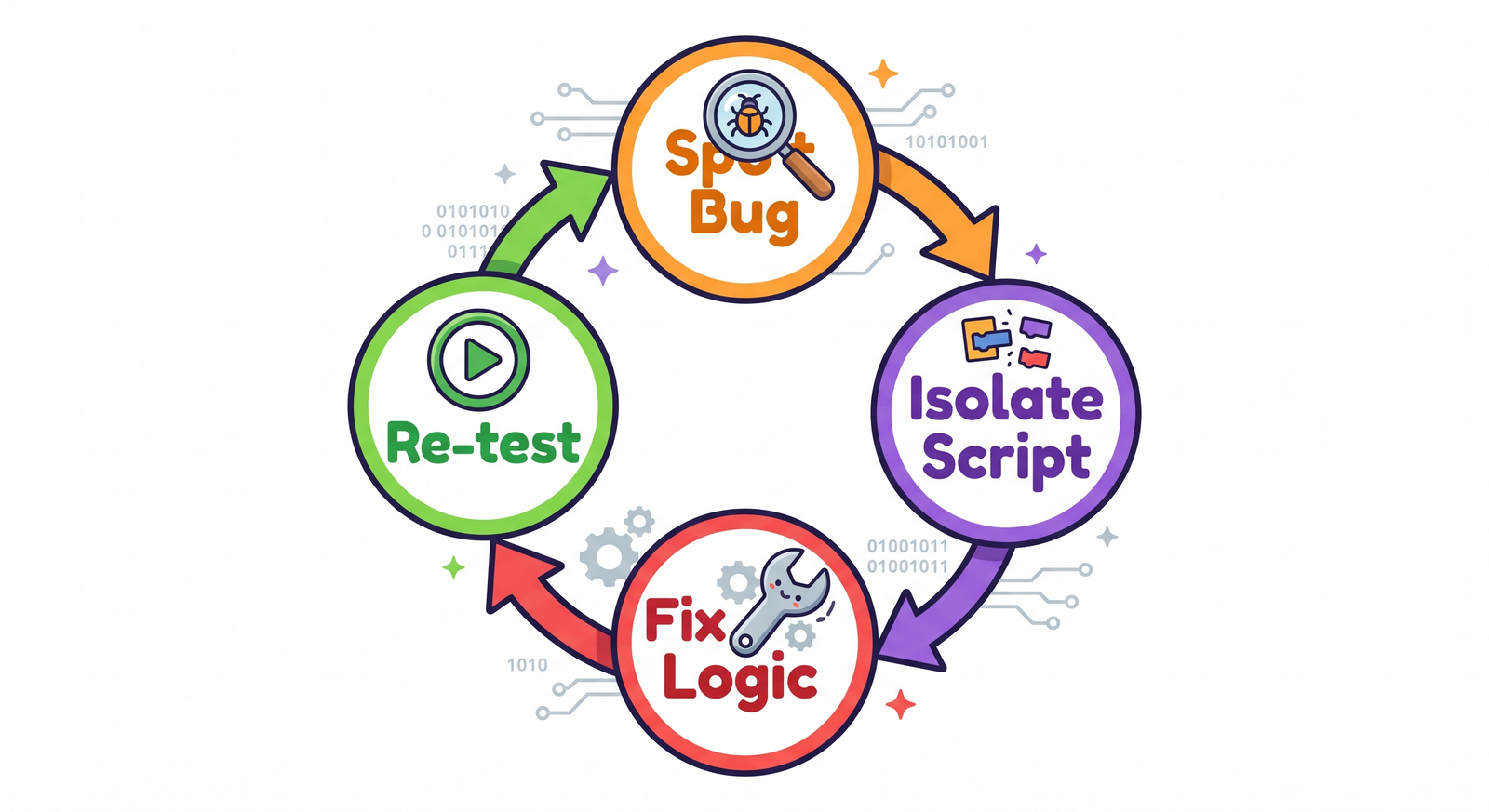
In programming, errors are called **bugs**, and the process of finding and fixing them is called **debugging**. When a project fails to run correctly, guessing randomly is slow and inefficient. Programmers use a systematic checklist: first, observe the bad behavior; second, locate the code responsible; third, isolate the scripts; fourth, fix the logic; and fifth, test to confirm the fix works. This teaches logical troubleshooting skills.
Using a structured checklist keeps you focused. It replaces panic with methodical analysis. When code breaks, checking inputs, variables, and execution sequences step-by-step saves time, resolving logic errors reliably.
2. Isolate faulty code blocks for testing
When a script becomes long and complex, finding the exact block causing an error can be difficult. You can isolate issues by dragging sections apart and testing them individually. Running small segments of code on their own helps you confirm which parts work and quickly pinpoint the faulty logic.
Unsnapping blocks isolates execution paths. If a character jumps, spins, and plays music, but gets stuck in mid-air, you can unsnap the spin and sound blocks. Testing only the jump script helps check if coordinates are calculated correctly before adding extra behaviors.

3. Test and fix logic bugs in code
Bugs are usually caused by simple logical errors in block configuration. Common mistakes
include using change x by instead of change y by for vertical
movement, using a set [Score] to 1 block instead of
change [Score] by 1, or placing a block outside a loop when it needs to run
repeatedly. Correcting these errors fixes the code's behavior.
Debugging logic builds deep coding awareness. You must read code like the computer does: line by line. Checking parameter details, dropdown selections, and loop limits helps reveal hidden bugs and correct program execution.
4. Verify fixes by running edge-case scenarios
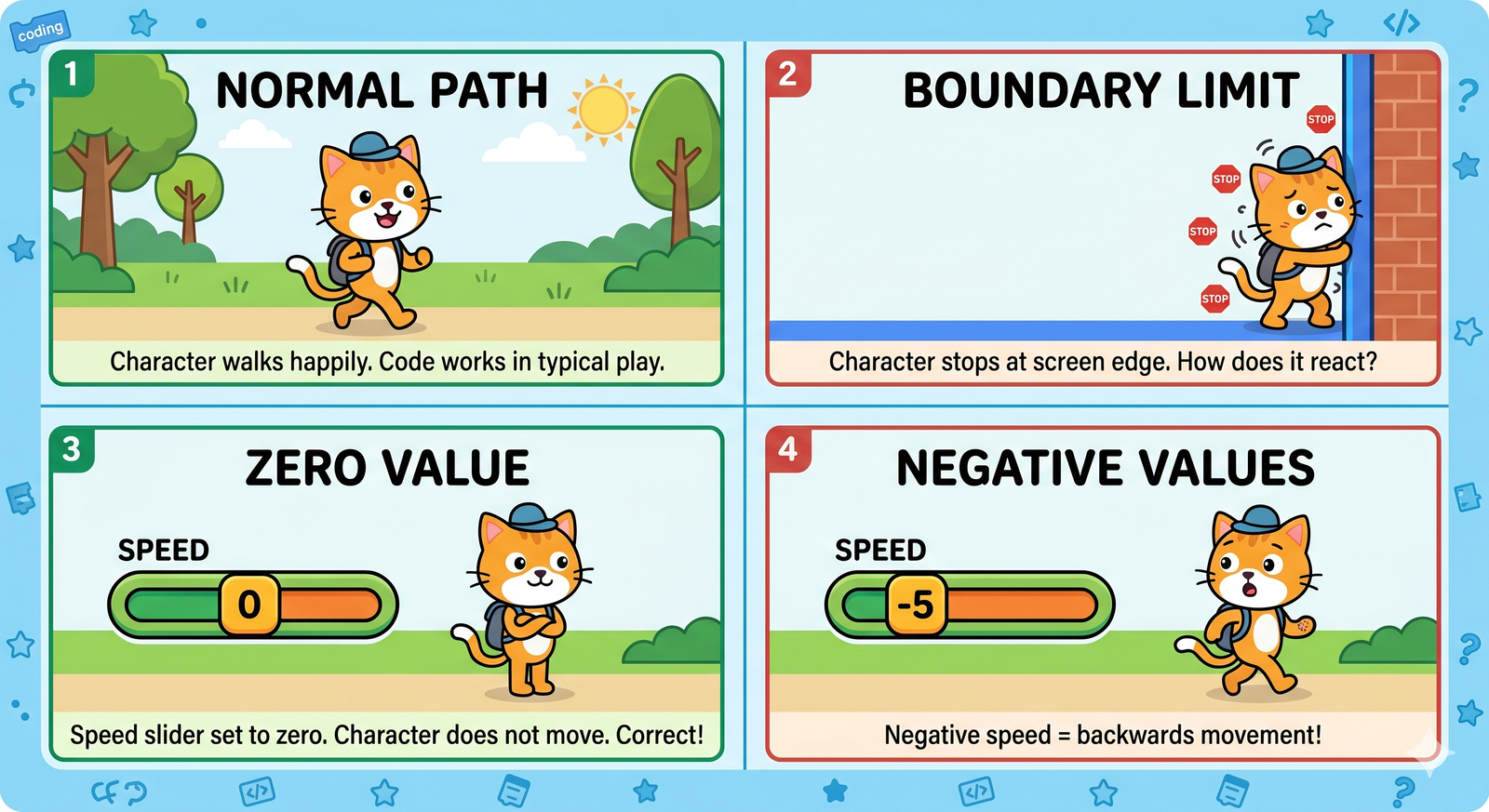
A fix is only successful if it works in all conditions, not just normal gameplay. Programmers test **edge cases**—extreme or unusual conditions that might break the code. Examples include testing what happens when a score goes below zero, when a sprite hits multiple boundaries at once, or when a user clicks buttons rapidly, ensuring your code is stable and robust.
Testing edge cases is the ultimate quality check. It confirms your application handles unexpected stresses gracefully without crash loops, keeping gameplay stable under any player action.
Debug a Broken Movement Script
- Recreate this broken script on a sprite: green flag clicked, set Score to 0. Loop forever: change X by 5, and if touching backdrop color, change score by 0 (instead of 1).
- Run the script. Observe that the sprite gets stuck on the walls and the score does not increase.
- Unsnap the collision blocks from the loop to isolate the movement code.
- Fix Bug 1: Change the movement blocks so they only move when arrow keys are pressed.
- Fix Bug 2: Change the score update block from set-to-0 to 'change Score by 1'.
- Fix Bug 3: Add an undo-step block to prevent the sprite from getting stuck inside the wall.
- Test edge cases by running the sprite directly into the corner to verify the fixes work.
Model Answer Walkthrough
- Identify the bugs: The sprite moves without input, gets stuck in walls, and the score does not increase.
- Isolate the script by separating the key controls and collision detection.
- Fix Bug 1 (uncontrolled movement): Wrap movement inside a key-pressed
conditional: [if
then] -> [change x by (5)]. - Fix Bug 2 (stuck in wall): Insert the collision reset check right after
movement: [if
then] -> [change x by (-5)]. - Fix Bug 3 (broken scoring): Set score to update correctly: [if
then] -> [change [Score] by (1)] -> [go to x: (-200) y: (0)]. - Run the project and test the controls to confirm the sprite moves smoothly, blocks at walls, and updates the score correctly.