Scoring Systems and Gamification
- Track a player's score systematically using a dedicated variable.
- Display the variable clearly on the screen as a user interface element.
- Increment or decrement the score upon successful conditional checks (e.g., catching an item).
- Program a 'Game Over' or 'You Win' state triggered when the score reaches a specific threshold.
1. Track player scores systematically
A scoring system encourages players and tracks their progress. By using a dedicated variable (like 'Score'), the program can systematically track accomplishments. This score updates in real time based on player performance, acting as the primary measure of progress in the game.
Score variables can track points, collectibles, levels completed, or elapsed time. It centralizes player performance data, letting you build progress scales.
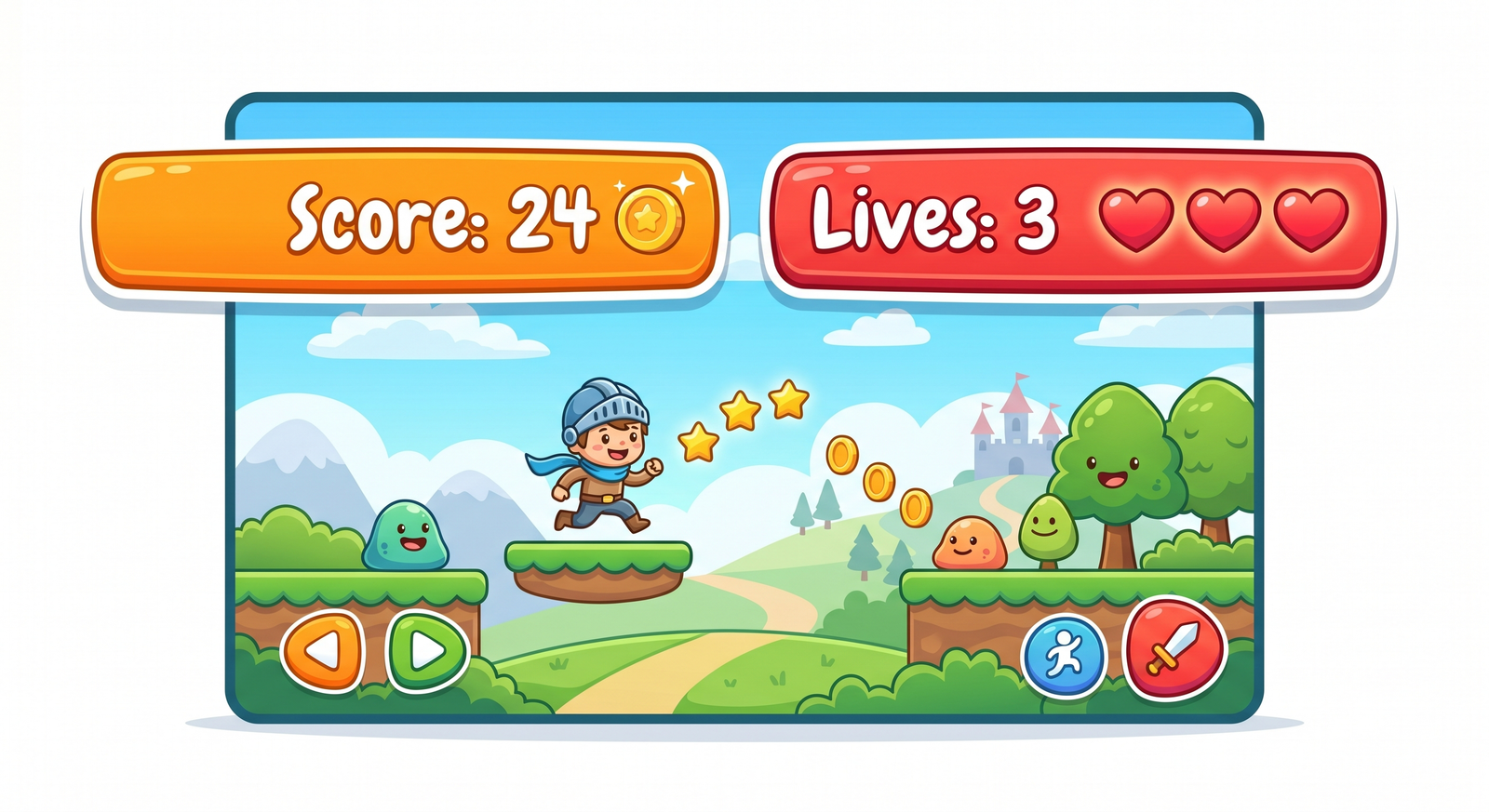
2. Display variables as HUD UI monitors
In game design, the **HUD** (Heads-Up Display) shows important information on screen. Checking the checkbox next to a variable in Scratch displays it on the stage as a visual monitor. Right-clicking this monitor lets you change its style: 'normal readout', 'large readout' (cleaner look), or 'slider' (allowing player adjustment), creating a clean and readable user interface.
Positioning coordinates of readout monitors keeps the screen uncluttered. Score readouts are usually placed in the top-left corner, and health levels in the top-right, following standard game UI layouts.
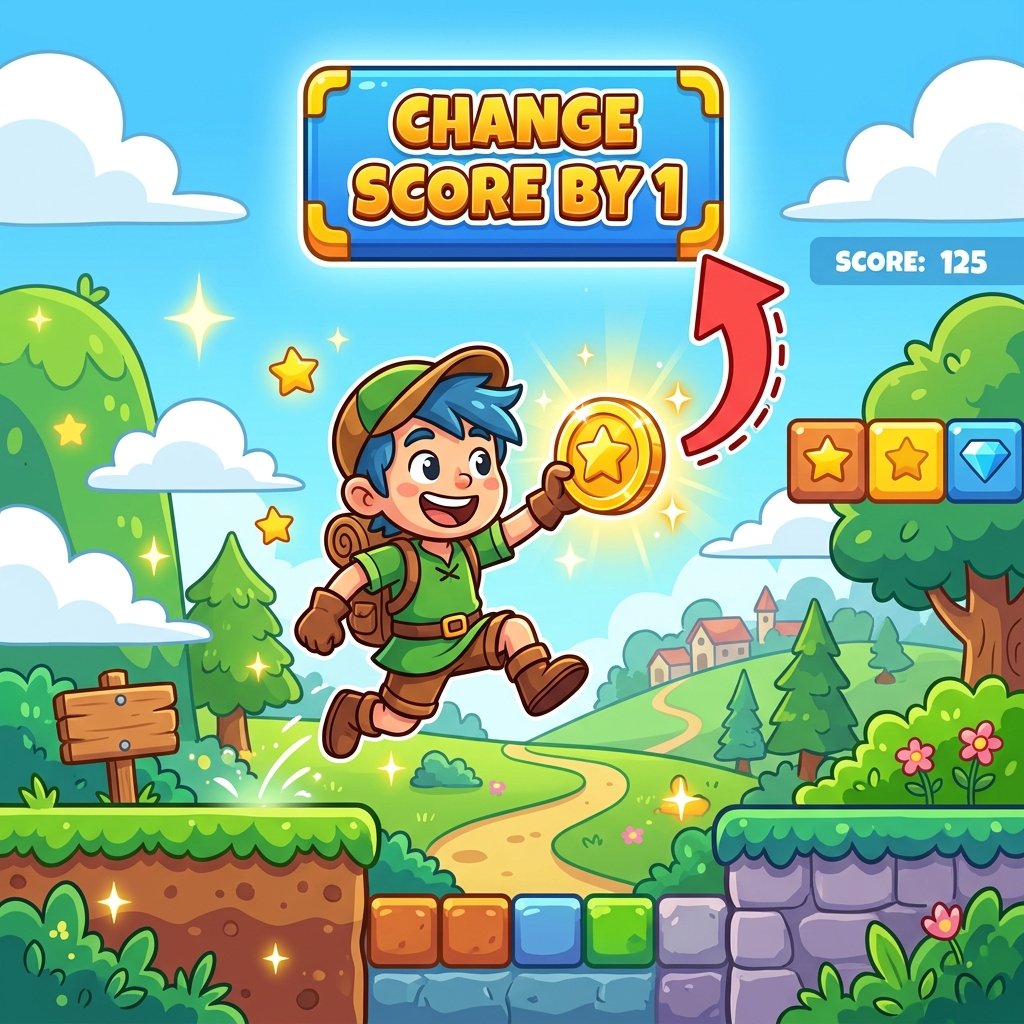
3. Increment and decrement scores on conditions
Scores update when specific conditions are met. If a player touches a collectible coin,
the script increases the score with a change [Score] by 10 block.
Conversely, hitting obstacles can reduce the score with a
change [Score] by -5 block, teaching students how code updates numeric
values based on gameplay rules.
Adding variable values based on difficulty balances difficulty. Hard-to-reach collectibles can reward 50 points, while simple coins reward 10 points. Adding negative updates for hitting hazards teaches risk management.
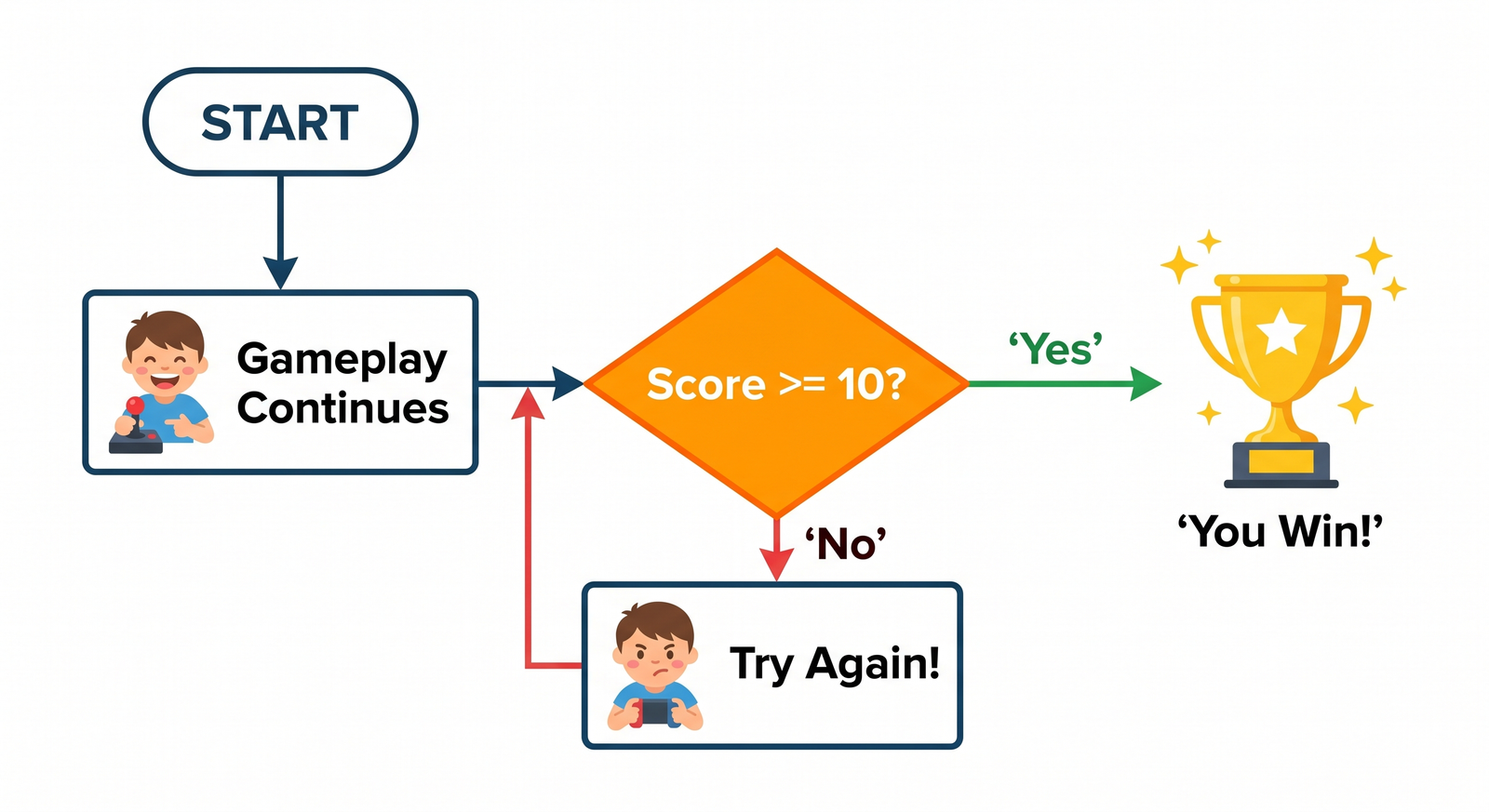
4. Program threshold-triggered win/loss states
A game needs clear win and loss conditions. By placing a conditional check inside your
game loop, you can continuously monitor if a variable has reached a specific target
value. For example, checking if Score >= 100 then broadcast [Win] triggers
a win sequence, while checking if Lives < 1 then broadcast [Game Over] ends
the game, structuring the overall flow of the project.
When the threshold check triggers, you run closing code: hide player inputs, play victory sounds, and show a final score summary panel before stopping scripts.
Build a Coin Catcher Game
- Add a Cat sprite (Player) at the bottom of the stage, controlled with the Left and Right Arrow keys. Add a 'Coin' sprite at the top of the stage.
- Create a variable named 'Score' and display it on the Stage. Initialize 'Score' to 0 on the green flag.
- Program the Coin to fall from the top of the screen continuously using a forever loop: change Y by -6. If Y is less than -170, reset its position to a random X coordinate at Y = 170.
- Add a collision check on the Coin: if touching the Player Cat, play sound 'Collect', change 'Score' by 1, and reset the Coin's position to the top.
- Add a win condition check inside the Player's script: if 'Score' is greater than or equal to 10, say 'You Win!' for 2 seconds, and stop all scripts.
Model Answer Walkthrough
- Initialize variables on startup: [when green flag clicked] -> [set [Score] to (0)].
- Set up the Coin's falling loop: [forever] -> [change y by (-6)] -> [if <(y position) < (-170)> then] -> [go to x: (pick random (-200) to (200)) y: (170)].
- Set up the Coin's collision handler: [if
then] -> [start sound (Collect)] -> [change [Score] by (1)] -> [go to x: (pick random (-200) to (200)) y: (170)]. - Create the Player's win checker: [forever] -> [if <(Score)> (9)> then] -> [say (You Win!) for (2) secs] -> [stop (all)].
- Run the project. Catch 10 coins to reach the score threshold and trigger the win state!